You lose owner or admin access, or the workspace is archived. Getting access back doesn’t revive it.
A token for one project stops while that project is archived.
A token for all your projects also covers projects you add later. AI assistants shows when each token was last used, under Tokens. Choose Revoke token in its … menu to end it, and anything your agent already received can’t be recalled.
Use Agentic Edit with another MCP client
Connect another MCP client to Agentic Edit: the one prompt to paste, the steps, what you’ll approve and the common fixes.
Connect another MCP client to Agentic Edit and you can work on your websites from a chat. You sign in to Agentic Edit and choose what it may do. You can stop it at any time in AI connections.
What you can do
On a computer: Any assistant that connects to a remote MCP server over HTTP and signs in with OAuth.
On your phone: If your assistant has a phone app, add Agentic Edit where it adds MCP servers.
Once it’s connected, you can:
Ask for a change to a website hosted in Agentic Edit. It edits a private draft and gives you a private preview to check.
Ask it to create a new website, where your workspace allows it.
Add photos and files to a change, from a link, your chat or your phone.
Read your clients’ feedback on websites, videos, PDFs, images and emails, and report what it changed.
Nothing goes live until it’s published. A person on your team publishes in Agentic Edit. An assistant publishes only a website you allowed when connecting it, where a workspace owner lets assistants publish that website, and only when you ask it to.
Paste one prompt
Paste this into a new chat in another MCP client. It reads its setup page and connects Agentic Edit where it can, or walks you through the steps below. You still sign in and approve access yourself.
Read agentic-edit.com/agents/other and help me connect Agentic Edit.
Set it up yourself
In the assistant’s settings, add an MCP server with streamable HTTP transport (sometimes just called HTTP; not stdio), OAuth sign-in, and this address. There’s no API key to paste.
If it uses a config file instead, add one of these:
Or, in TOML:
Start sign-in from the assistant’s MCP or connector settings. It opens Agentic Edit’s sign-in page in the browser.
Starting sign-in opens Agentic Edit’s sign-in page in the browser.
Then Agentic Edit’s approval page opens. You make every choice on it:
Sign in to Agentic Edit with your own account. The page names the app asking for access and where access will return. Continue only if you just started connecting it.
If you belong to several workspaces, each has its own tab. Nothing is shared until you turn it on.
Choose what it may do. The quickest is Allow everything, which turns on what your role lets you allow in that workspace, including every website you can edit, and then shows what it leaves off, for you to turn on one by one. Or turn on Edit beside each website it may edit under Websites: an owner sees every hosted website, and a member the ones on whose project team they are. Turn on Create new websites if it’s offered. Where it isn’t, choose one website under Connect this agent to one website and turn on Start private edits from this chat.
Under Access lasts, choose 7, 30 or 90 days.
Choose Review permissions, check the list, then choose Authorize.
Only where the page offers them, and only if you want them:
Website data: read and change the website’s data tables. Changes apply at once.
Share private previews with a link: a link to an accepted change that anyone can open without signing in, for up to 7 days.
Publish beside a website (Publish this website live): publish a version when you ask it to. Offered unless a workspace owner turned off Publishers’ connected AI assistants can publish for that website.
Manage beside a website (Manage this website): accept or reject changes and roll back for you, without you signing in; for an owner, also stop change tasks, restore the source and prepare a private preview. Offered unless a workspace owner turned off AI can manage this website for that website.
Inspect hosting and propose operations for these websites: check hosting and ask for publication or a custom domain, which a person decides in Agentic Edit.
Offer these websites to another workspace: an owner of the other workspace accepts it, signed in, in Agentic Edit.
Add people to website teams: for a workspace owner or admin whose assistant creates websites, add someone already in the workspace to a website’s team, by their email address, after asking you. It never invites anyone or changes a role.
Invite people to this workspace and manage its members: for a workspace owner or admin, invite someone by email address as a Member, send their invitation email again, change an admin to a Member, or remove a member, when you ask, as Settings / Team does. Every owner is emailed each time. It never makes anyone an admin or owner, and Allow everything doesn’t include it.
Read project feedback and Reply to project feedback: read your clients’ feedback and report back on it.
Reconnecting opens the same approval page, and you choose again. A connection never gains a permission you didn’t tick, and turning a website’s switch off ends what depended on it.
Start using it
Reload or restart the assistant, then ask for a change. For example:
Use Agentic Edit to change the headline on my website’s home page to “Fresh bread every morning” and tell me when the private preview is ready.
Common fixes
It can’t open a browser to sign in. Use a personal access token instead. Most tokens read feedback only: they can’t create or edit websites.
The Agentic Edit tools don’t appear. Refresh the tools in the assistant’s connector settings, or reconnect, then start a new chat or session.
Signed in with the wrong account. Reconnect and sign in with the Agentic Edit account that has the websites.
A website is missing, or access ended. Reconnect, tick the website again and choose how long access lasts.
Your assistant says it doesn’t edit a website you work on. That website wasn’t ticked when you connected. Reconnect and turn on Edit beside it under Websites. If it isn’t listed, a workspace owner or admin adds you to its project team first.
The approval page offers no websites to tick. Websites are listed for the people who can edit them: a workspace owner or admin adds you to a website’s project team. If nothing is offered at all, you need access to a website hosted in Agentic Edit.
Your assistant’s own help says where it adds a remote MCP server and how it signs in.
Use Agentic Edit in Google Antigravity
Connect Google Antigravity to Agentic Edit: the one prompt to paste, the steps, what you’ll approve and the common fixes.
Connect Google Antigravity to Agentic Edit and you can work on your websites from a chat. You sign in to Agentic Edit and choose what it may do. You can stop it at any time in AI connections.
What you can do
On a computer: The Antigravity app, editor or CLI, which share one setup: ask the agent to change a website hosted in Agentic Edit, or to fix your clients’ feedback in a workspace you open.
On your phone: Antigravity runs on your computer. On your phone, connect ChatGPT or Claude to the same Agentic Edit workspace.
Once it’s connected, you can:
Ask for a change to a website hosted in Agentic Edit. It edits a private draft and gives you a private preview to check.
Ask it to create a new website, where your workspace allows it.
Add photos and files to a change, from a link, your chat or your phone.
Read your clients’ feedback on websites, videos, PDFs, images and emails, and report what it changed.
Nothing goes live until it’s published. A person on your team publishes in Agentic Edit. An assistant publishes only a website you allowed when connecting it, where a workspace owner lets assistants publish that website, and only when you ask it to.
Paste one prompt
Paste this into a new chat in Google Antigravity. It reads its setup page and connects Agentic Edit where it can, or walks you through the steps below. You still sign in and approve access yourself.
Read agentic-edit.com/antigravity and help me connect Agentic Edit.
Set it up yourself
Open Antigravity’s MCP settings. In the editor, open the … menu at the top of the agent panel, choose MCP Servers, then Manage MCP Servers and View raw config. Or edit ~/.gemini/config/mcp_config.json yourself, which the app, the editor and the CLI share.
Add this, keeping any servers already in the file, and save:
Sign in. In the Antigravity app, click Customizations, then Installed. Under MCP Servers, click Authenticate next to agentic-edit, sign in to Agentic Edit in the browser, copy the authorization code it shows, paste it into Enter authorization code and click Submit.
In the CLI, type /mcp to open the MCP manager and check that agentic-edit is connected.
Choosing Authenticate opens Agentic Edit’s sign-in page. After you approve, the browser shows a code to paste back into Antigravity.
Then Agentic Edit’s approval page opens. You make every choice on it:
Sign in to Agentic Edit with your own account. The page names the app asking for access and where access will return. Continue only if you just started connecting it.
If you belong to several workspaces, each has its own tab. Nothing is shared until you turn it on.
Choose what it may do. The quickest is Allow everything, which turns on what your role lets you allow in that workspace, including every website you can edit, and then shows what it leaves off, for you to turn on one by one. Or turn on Edit beside each website it may edit under Websites: an owner sees every hosted website, and a member the ones on whose project team they are. Turn on Create new websites if it’s offered. Where it isn’t, choose one website under Connect this agent to one website and turn on Start private edits from this chat.
Under Access lasts, choose 7, 30 or 90 days.
Choose Review permissions, check the list, then choose Authorize.
Only where the page offers them, and only if you want them:
Website data: read and change the website’s data tables. Changes apply at once.
Share private previews with a link: a link to an accepted change that anyone can open without signing in, for up to 7 days.
Publish beside a website (Publish this website live): publish a version when you ask it to. Offered unless a workspace owner turned off Publishers’ connected AI assistants can publish for that website.
Manage beside a website (Manage this website): accept or reject changes and roll back for you, without you signing in; for an owner, also stop change tasks, restore the source and prepare a private preview. Offered unless a workspace owner turned off AI can manage this website for that website.
Inspect hosting and propose operations for these websites: check hosting and ask for publication or a custom domain, which a person decides in Agentic Edit.
Offer these websites to another workspace: an owner of the other workspace accepts it, signed in, in Agentic Edit.
Add people to website teams: for a workspace owner or admin whose assistant creates websites, add someone already in the workspace to a website’s team, by their email address, after asking you. It never invites anyone or changes a role.
Invite people to this workspace and manage its members: for a workspace owner or admin, invite someone by email address as a Member, send their invitation email again, change an admin to a Member, or remove a member, when you ask, as Settings / Team does. Every owner is emailed each time. It never makes anyone an admin or owner, and Allow everything doesn’t include it.
Read project feedback and Reply to project feedback: read your clients’ feedback and report back on it.
Reconnecting opens the same approval page, and you choose again. A connection never gains a permission you didn’t tick, and turning a website’s switch off ends what depended on it.
Start using it
Ask the agent for a change. For example:
Use Agentic Edit to change the headline on my website’s home page to “Fresh bread every morning” and tell me when the private preview is ready.
Common fixes
The server is ignored. Antigravity reads a remote server’s address from serverUrl. Use the configuration above, not one written for another app.
The Agentic Edit tools don’t appear. Refresh the tools in the assistant’s connector settings, or reconnect, then start a new chat or session.
Signed in with the wrong account. Reconnect and sign in with the Agentic Edit account that has the websites.
A website is missing, or access ended. Reconnect, tick the website again and choose how long access lasts.
Your assistant says it doesn’t edit a website you work on. That website wasn’t ticked when you connected. Reconnect and turn on Edit beside it under Websites. If it isn’t listed, a workspace owner or admin adds you to its project team first.
The approval page offers no websites to tick. Websites are listed for the people who can edit them: a workspace owner or admin adds you to a website’s project team. If nothing is offered at all, you need access to a website hosted in Agentic Edit.
Checked against Google Antigravity: MCP on November 17, 2026. Google Antigravity’s screens can change.
Use Agentic Edit in ChatGPT
Connect ChatGPT to Agentic Edit: the one prompt to paste, the steps, what you’ll approve and the common fixes.
Connect ChatGPT to Agentic Edit and you can work on your websites from a chat. You sign in to Agentic Edit and choose what it may do. You can stop it at any time in AI connections.
What you can do
On a computer: Chat on chatgpt.com or in the ChatGPT desktop app: ask for a change to your website, check its private preview and read your clients’ feedback.
On your phone: Once it’s added, use it in the ChatGPT app on your phone with the same ChatGPT account and workspace. If the app doesn’t offer setup, add it at chatgpt.com/plugins in a browser.
Once it’s connected, you can:
Ask for a change to a website hosted in Agentic Edit. It edits a private draft and gives you a private preview to check.
Ask it to create a new website, where your workspace allows it.
Add photos and files to a change, from a link, your chat or your phone.
Read your clients’ feedback on websites, videos, PDFs, images and emails, and report what it changed.
Nothing goes live until it’s published. A person on your team publishes in Agentic Edit. An assistant publishes only a website you allowed when connecting it, where a workspace owner lets assistants publish that website, and only when you ask it to.
Paste one prompt
Paste this into a new chat in ChatGPT. It reads its setup page and connects Agentic Edit where it can, or walks you through the steps below. You still sign in and approve access yourself.
Read agentic-edit.com/chatgpt and help me connect Agentic Edit.
Set it up yourself
In ChatGPT, open Plugins (in a browser: chatgpt.com/plugins). In the upper right choose Add (the + button), then Add custom MCP server.
Name it Agentic Edit. Under Connection, choose Server URL and paste the address below. Leave Authentication set to OAuth. There’s no API key or token to paste.
Review the warning, select I understand and want to continue, then choose Create as a plugin.
https://agentic-edit.com/mcp
Added before? Don’t add it again. Open Agentic Edit in Plugins and choose View details / Manage app / Refresh tools, so ChatGPT loads the current tools.
What you’ll be asked to approve
Adding a custom server shows ChatGPT’s warning about custom servers, with I understand and want to continue.
Connecting opens Agentic Edit’s sign-in page. Agentic Edit sign-in is separate from the ChatGPT account.
In a chat, ChatGPT can ask before an action, such as uploading a file or stopping a change, with Allow once. Read what it’s about to do before you allow it.
Then Agentic Edit’s approval page opens. You make every choice on it:
Sign in to Agentic Edit with your own account. The page names the app asking for access and where access will return. Continue only if you just started connecting it.
If you belong to several workspaces, each has its own tab. Nothing is shared until you turn it on.
Choose what it may do. The quickest is Allow everything, which turns on what your role lets you allow in that workspace, including every website you can edit, and then shows what it leaves off, for you to turn on one by one. Or turn on Edit beside each website it may edit under Websites: an owner sees every hosted website, and a member the ones on whose project team they are. Turn on Create new websites if it’s offered. Where it isn’t, choose one website under Connect this agent to one website and turn on Start private edits from this chat.
Under Access lasts, choose 7, 30 or 90 days.
Choose Review permissions, check the list, then choose Authorize.
Only where the page offers them, and only if you want them:
Website data: read and change the website’s data tables. Changes apply at once.
Share private previews with a link: a link to an accepted change that anyone can open without signing in, for up to 7 days.
Publish beside a website (Publish this website live): publish a version when you ask it to. Offered unless a workspace owner turned off Publishers’ connected AI assistants can publish for that website.
Manage beside a website (Manage this website): accept or reject changes and roll back for you, without you signing in; for an owner, also stop change tasks, restore the source and prepare a private preview. Offered unless a workspace owner turned off AI can manage this website for that website.
Inspect hosting and propose operations for these websites: check hosting and ask for publication or a custom domain, which a person decides in Agentic Edit.
Offer these websites to another workspace: an owner of the other workspace accepts it, signed in, in Agentic Edit.
Add people to website teams: for a workspace owner or admin whose assistant creates websites, add someone already in the workspace to a website’s team, by their email address, after asking you. It never invites anyone or changes a role.
Invite people to this workspace and manage its members: for a workspace owner or admin, invite someone by email address as a Member, send their invitation email again, change an admin to a Member, or remove a member, when you ask, as Settings / Team does. Every owner is emailed each time. It never makes anyone an admin or owner, and Allow everything doesn’t include it.
Read project feedback and Reply to project feedback: read your clients’ feedback and report back on it.
Reconnecting opens the same approval page, and you choose again. A connection never gains a permission you didn’t tick, and turning a website’s switch off ends what depended on it.
Start using it
Review the tools and install the plugin when ChatGPT offers it. Start a new chat, type @ and choose Agentic Edit. For example:
Use Agentic Edit to change the headline on my website’s home page to “Fresh bread every morning” and tell me when the private preview is ready.
Common fixes
Add custom MCP server is missing. Custom servers depend on the ChatGPT account and workspace policies. Ask the ChatGPT workspace admin whether custom servers are allowed.
ChatGPT says “Unknown tool” for a website tool, such as `get_editable_site`. ChatGPT keeps one saved list of tools for every account linked to the app, and that list is out of date. Open Agentic Edit in Plugins, choose View details / Manage app / Refresh tools once, then start a new chat.
It reads the wrong workspace, or says a linked account isn’t eligible. ChatGPT can hold several Agentic Edit sign-ins. Say which one to use in your request, or reconnect and sign in with the Agentic Edit account that has the websites. Check that the browser and the phone app use the same ChatGPT account and workspace.
The Agentic Edit tools don’t appear. Refresh the tools in the assistant’s connector settings, or reconnect, then start a new chat or session.
Signed in with the wrong account. Reconnect and sign in with the Agentic Edit account that has the websites.
A website is missing, or access ended. Reconnect, tick the website again and choose how long access lasts.
Your assistant says it doesn’t edit a website you work on. That website wasn’t ticked when you connected. Reconnect and turn on Edit beside it under Websites. If it isn’t listed, a workspace owner or admin adds you to its project team first.
The approval page offers no websites to tick. Websites are listed for the people who can edit them: a workspace owner or admin adds you to a website’s project team. If nothing is offered at all, you need access to a website hosted in Agentic Edit.
Connect Claude Code to Agentic Edit: the one prompt to paste, the steps, what you’ll approve and the common fixes.
Connect Claude Code to Agentic Edit and you can work on your websites from a task. You sign in to Agentic Edit and choose what it may do. You can stop it at any time in AI connections.
What you can do
On a computer: Claude Code in your terminal or editor: ask it to change a website hosted in Agentic Edit, or to fix your clients’ feedback in a repository you open.
On your phone: Claude Code runs on your computer. On your phone, connect Claude to the same Agentic Edit workspace.
Once it’s connected, you can:
Ask for a change to a website hosted in Agentic Edit. It edits a private draft and gives you a private preview to check.
Ask it to create a new website, where your workspace allows it.
Add photos and files to a change, from a link, your chat or your phone.
Read your clients’ feedback on websites, videos, PDFs, images and emails, and report what it changed.
Nothing goes live until it’s published. A person on your team publishes in Agentic Edit. An assistant publishes only a website you allowed when connecting it, where a workspace owner lets assistants publish that website, and only when you ask it to.
Paste one prompt
Paste this into a new task in Claude Code. It reads its setup page and connects Agentic Edit where it can, or walks you through the steps below. You still sign in and approve access yourself.
Read agentic-edit.com/claude-code to connect Agentic Edit.
Set it up yourself
Run this command in a terminal, in the folder you work in:
Start sign-in with this command. Agentic Edit’s sign-in page opens in the browser:
If this version of Claude Code doesn’t have that command, type /mcp in Claude Code, choose agentic-edit and follow its sign-in steps.
claude mcp add --transport http agentic-edit https://agentic-edit.com/mcp
claude mcp login agentic-edit
If Claude Code says agentic-edit already exists, don’t add it again: run the sign-in command.
What you’ll be asked to approve
Agentic Edit’s sign-in page opens in the browser. On a computer with no browser, add --no-browser to the sign-in command, open the link it prints on any device and approve, then paste the full address from the browser’s address bar back at the prompt.
Then Agentic Edit’s approval page opens. You make every choice on it:
Sign in to Agentic Edit with your own account. The page names the app asking for access and where access will return. Continue only if you just started connecting it.
If you belong to several workspaces, each has its own tab. Nothing is shared until you turn it on.
Choose what it may do. The quickest is Allow everything, which turns on what your role lets you allow in that workspace, including every website you can edit, and then shows what it leaves off, for you to turn on one by one. Or turn on Edit beside each website it may edit under Websites: an owner sees every hosted website, and a member the ones on whose project team they are. Turn on Create new websites if it’s offered. Where it isn’t, choose one website under Connect this agent to one website and turn on Start private edits from this chat.
Under Access lasts, choose 7, 30 or 90 days.
Choose Review permissions, check the list, then choose Authorize.
Only where the page offers them, and only if you want them:
Website data: read and change the website’s data tables. Changes apply at once.
Share private previews with a link: a link to an accepted change that anyone can open without signing in, for up to 7 days.
Publish beside a website (Publish this website live): publish a version when you ask it to. Offered unless a workspace owner turned off Publishers’ connected AI assistants can publish for that website.
Manage beside a website (Manage this website): accept or reject changes and roll back for you, without you signing in; for an owner, also stop change tasks, restore the source and prepare a private preview. Offered unless a workspace owner turned off AI can manage this website for that website.
Inspect hosting and propose operations for these websites: check hosting and ask for publication or a custom domain, which a person decides in Agentic Edit.
Offer these websites to another workspace: an owner of the other workspace accepts it, signed in, in Agentic Edit.
Add people to website teams: for a workspace owner or admin whose assistant creates websites, add someone already in the workspace to a website’s team, by their email address, after asking you. It never invites anyone or changes a role.
Invite people to this workspace and manage its members: for a workspace owner or admin, invite someone by email address as a Member, send their invitation email again, change an admin to a Member, or remove a member, when you ask, as Settings / Team does. Every owner is emailed each time. It never makes anyone an admin or owner, and Allow everything doesn’t include it.
Read project feedback and Reply to project feedback: read your clients’ feedback and report back on it.
Reconnecting opens the same approval page, and you choose again. A connection never gains a permission you didn’t tick, and turning a website’s switch off ends what depended on it.
Start using it
Start Claude Code in the same folder and ask for a change. For example:
Use Agentic Edit to change the headline on my website’s home page to “Fresh bread every morning” and tell me when the private preview is ready.
Common fixes
The Agentic Edit tools don’t appear. Refresh the tools in the assistant’s connector settings, or reconnect, then start a new chat or session.
Signed in with the wrong account. Reconnect and sign in with the Agentic Edit account that has the websites.
A website is missing, or access ended. Reconnect, tick the website again and choose how long access lasts.
Your assistant says it doesn’t edit a website you work on. That website wasn’t ticked when you connected. Reconnect and turn on Edit beside it under Websites. If it isn’t listed, a workspace owner or admin adds you to its project team first.
The approval page offers no websites to tick. Websites are listed for the people who can edit them: a workspace owner or admin adds you to a website’s project team. If nothing is offered at all, you need access to a website hosted in Agentic Edit.
Checked against Claude Code: MCP on November 17, 2026. Claude Code’s screens can change.
Use Agentic Edit in Claude
Connect Claude to Agentic Edit: the one prompt to paste, the steps, what you’ll approve and the common fixes.
Connect Claude to Agentic Edit and you can work on your websites from a chat. You sign in to Agentic Edit and choose what it may do. You can stop it at any time in AI connections.
What you can do
On a computer: Chat on claude.ai or in the Claude desktop app: ask for a change to your website, check its private preview and read your clients’ feedback.
On your phone: Add it on the web or in the desktop app. It then works in the Claude app on iPhone and Android too.
Once it’s connected, you can:
Ask for a change to a website hosted in Agentic Edit. It edits a private draft and gives you a private preview to check.
Ask it to create a new website, where your workspace allows it.
Add photos and files to a change, from a link, your chat or your phone.
Read your clients’ feedback on websites, videos, PDFs, images and emails, and report what it changed.
Nothing goes live until it’s published. A person on your team publishes in Agentic Edit. An assistant publishes only a website you allowed when connecting it, where a workspace owner lets assistants publish that website, and only when you ask it to.
Paste one prompt
Paste this into a new chat in Claude. It reads its setup page and connects Agentic Edit where it can, or walks you through the steps below. You still sign in and approve access yourself.
Read agentic-edit.com/claude and help me connect Agentic Edit.
Set it up yourself
In Claude, open Customize / Connectors. Choose + Add, then Add custom connector. Claude recommends its web or desktop app for this.
Name it Agentic Edit, paste the address below and choose Continue. Choose Continue again on the sign-in settings Claude finds. Keep a sign-in choice under Authentication and Claude’s recommended choice under OAuth client, then choose Add.
If Claude doesn’t open sign-in straight away, choose Connect next to Agentic Edit on the same page.
https://agentic-edit.com/mcp
What you’ll be asked to approve
Connecting opens Agentic Edit’s sign-in page.
Claude asks before it uses a tool. Read each request before you allow it.
Then Agentic Edit’s approval page opens. You make every choice on it:
Sign in to Agentic Edit with your own account. The page names the app asking for access and where access will return. Continue only if you just started connecting it.
If you belong to several workspaces, each has its own tab. Nothing is shared until you turn it on.
Choose what it may do. The quickest is Allow everything, which turns on what your role lets you allow in that workspace, including every website you can edit, and then shows what it leaves off, for you to turn on one by one. Or turn on Edit beside each website it may edit under Websites: an owner sees every hosted website, and a member the ones on whose project team they are. Turn on Create new websites if it’s offered. Where it isn’t, choose one website under Connect this agent to one website and turn on Start private edits from this chat.
Under Access lasts, choose 7, 30 or 90 days.
Choose Review permissions, check the list, then choose Authorize.
Only where the page offers them, and only if you want them:
Website data: read and change the website’s data tables. Changes apply at once.
Share private previews with a link: a link to an accepted change that anyone can open without signing in, for up to 7 days.
Publish beside a website (Publish this website live): publish a version when you ask it to. Offered unless a workspace owner turned off Publishers’ connected AI assistants can publish for that website.
Manage beside a website (Manage this website): accept or reject changes and roll back for you, without you signing in; for an owner, also stop change tasks, restore the source and prepare a private preview. Offered unless a workspace owner turned off AI can manage this website for that website.
Inspect hosting and propose operations for these websites: check hosting and ask for publication or a custom domain, which a person decides in Agentic Edit.
Offer these websites to another workspace: an owner of the other workspace accepts it, signed in, in Agentic Edit.
Add people to website teams: for a workspace owner or admin whose assistant creates websites, add someone already in the workspace to a website’s team, by their email address, after asking you. It never invites anyone or changes a role.
Invite people to this workspace and manage its members: for a workspace owner or admin, invite someone by email address as a Member, send their invitation email again, change an admin to a Member, or remove a member, when you ask, as Settings / Team does. Every owner is emailed each time. It never makes anyone an admin or owner, and Allow everything doesn’t include it.
Read project feedback and Reply to project feedback: read your clients’ feedback and report back on it.
Reconnecting opens the same approval page, and you choose again. A connection never gains a permission you didn’t tick, and turning a website’s switch off ends what depended on it.
Start using it
Start a new chat. If Agentic Edit is off, turn it on from the + button, under Connectors. For example:
Use Agentic Edit to change the headline on my website’s home page to “Fresh bread every morning” and tell me when the private preview is ready.
Common fixes
You can’t add another connector. The Free plan allows one custom connector. On Team and Enterprise plans, an owner adds it first.
The Agentic Edit tools don’t appear. Refresh the tools in the assistant’s connector settings, or reconnect, then start a new chat or session.
Signed in with the wrong account. Reconnect and sign in with the Agentic Edit account that has the websites.
A website is missing, or access ended. Reconnect, tick the website again and choose how long access lasts.
Your assistant says it doesn’t edit a website you work on. That website wasn’t ticked when you connected. Reconnect and turn on Edit beside it under Websites. If it isn’t listed, a workspace owner or admin adds you to its project team first.
The approval page offers no websites to tick. Websites are listed for the people who can edit them: a workspace owner or admin adds you to a website’s project team. If nothing is offered at all, you need access to a website hosted in Agentic Edit.
Connect Codex to Agentic Edit: the one prompt to paste, the steps, what you’ll approve and the common fixes.
Connect Codex to Agentic Edit and you can work on your websites from a task. You sign in to Agentic Edit and choose what it may do. You can stop it at any time in AI connections.
What you can do
On a computer: Codex in a terminal, its IDE extension or the ChatGPT desktop app: they share one setup. Ask it to change a website hosted in Agentic Edit, or to fix your clients’ feedback in a repository you open.
On your phone: Codex runs on your computer. On your phone, connect ChatGPT or Claude to the same Agentic Edit workspace.
Once it’s connected, you can:
Ask for a change to a website hosted in Agentic Edit. It edits a private draft and gives you a private preview to check.
Ask it to create a new website, where your workspace allows it.
Add photos and files to a change, from a link, your chat or your phone.
Read your clients’ feedback on websites, videos, PDFs, images and emails, and report what it changed.
Nothing goes live until it’s published. A person on your team publishes in Agentic Edit. An assistant publishes only a website you allowed when connecting it, where a workspace owner lets assistants publish that website, and only when you ask it to.
Paste one prompt
Paste this into a new task in Codex. It reads its setup page and connects Agentic Edit where it can, or walks you through the steps below. You still sign in and approve access yourself.
/goal Read agentic-edit.com/codex to connect Agentic Edit.
Set it up yourself
Run this command in a terminal on the computer where Codex runs. It adds the server and opens Agentic Edit’s sign-in page in the browser:
On a computer with no browser, run codex mcp login agentic-edit --no-browser, open the link it prints on any device and approve, then paste the full address from the browser’s address bar back into the terminal.
Agentic Edit’s sign-in page opens in the browser. Codex waits until you approve.
Then Agentic Edit’s approval page opens. You make every choice on it:
Sign in to Agentic Edit with your own account. The page names the app asking for access and where access will return. Continue only if you just started connecting it.
If you belong to several workspaces, each has its own tab. Nothing is shared until you turn it on.
Choose what it may do. The quickest is Allow everything, which turns on what your role lets you allow in that workspace, including every website you can edit, and then shows what it leaves off, for you to turn on one by one. Or turn on Edit beside each website it may edit under Websites: an owner sees every hosted website, and a member the ones on whose project team they are. Turn on Create new websites if it’s offered. Where it isn’t, choose one website under Connect this agent to one website and turn on Start private edits from this chat.
Under Access lasts, choose 7, 30 or 90 days.
Choose Review permissions, check the list, then choose Authorize.
Only where the page offers them, and only if you want them:
Website data: read and change the website’s data tables. Changes apply at once.
Share private previews with a link: a link to an accepted change that anyone can open without signing in, for up to 7 days.
Publish beside a website (Publish this website live): publish a version when you ask it to. Offered unless a workspace owner turned off Publishers’ connected AI assistants can publish for that website.
Manage beside a website (Manage this website): accept or reject changes and roll back for you, without you signing in; for an owner, also stop change tasks, restore the source and prepare a private preview. Offered unless a workspace owner turned off AI can manage this website for that website.
Inspect hosting and propose operations for these websites: check hosting and ask for publication or a custom domain, which a person decides in Agentic Edit.
Offer these websites to another workspace: an owner of the other workspace accepts it, signed in, in Agentic Edit.
Add people to website teams: for a workspace owner or admin whose assistant creates websites, add someone already in the workspace to a website’s team, by their email address, after asking you. It never invites anyone or changes a role.
Invite people to this workspace and manage its members: for a workspace owner or admin, invite someone by email address as a Member, send their invitation email again, change an admin to a Member, or remove a member, when you ask, as Settings / Team does. Every owner is emailed each time. It never makes anyone an admin or owner, and Allow everything doesn’t include it.
Read project feedback and Reply to project feedback: read your clients’ feedback and report back on it.
Reconnecting opens the same approval page, and you choose again. A connection never gains a permission you didn’t tick, and turning a website’s switch off ends what depended on it.
Start using it
Start a new Codex task and ask for a change. For example:
Use Agentic Edit to change the headline on my website’s home page to “Fresh bread every morning” and tell me when the private preview is ready.
Common fixes
The approval page offers no websites to tick. Sign in again with the website sign-in command above. It asks for the website tools.
The Agentic Edit tools don’t appear. Refresh the tools in the assistant’s connector settings, or reconnect, then start a new chat or session.
Signed in with the wrong account. Reconnect and sign in with the Agentic Edit account that has the websites.
A website is missing, or access ended. Reconnect, tick the website again and choose how long access lasts.
Your assistant says it doesn’t edit a website you work on. That website wasn’t ticked when you connected. Reconnect and turn on Edit beside it under Websites. If it isn’t listed, a workspace owner or admin adds you to its project team first.
The approval page offers no websites to tick. Websites are listed for the people who can edit them: a workspace owner or admin adds you to a website’s project team. If nothing is offered at all, you need access to a website hosted in Agentic Edit.
The tool refuses a token on the command line, so it stays out of your shell history. It saves it to a private file on this computer, and agentic-edit logout removes it. To use a token without saving it, set AGENTIC_EDIT_TOKEN.
Commands
What each command does
Command
What it does
agentic-edit whoami
Shows your workspace and what your token may do.
agentic-edit projects
Lists the projects your token can read.
agentic-edit canvases [<project>]
Lists uploaded videos, PDFs, images and emails.
agentic-edit feedback <project>
Lists a project’s open feedback.
agentic-edit show <comment>
Reads one comment in full, with its thread and files.
agentic-edit evidence <comment>
Saves a comment’s screenshots and attachments as files.
agentic-edit start <comment>
Marks a comment as in progress.
agentic-edit reply <comment> "<text>"
Posts a reply, for your team unless you add --everyone.
agentic-edit review <comment>
Marks a comment as ready for a person to check.
agentic-edit done <comment>
Reports what you changed, for a person to confirm.
agentic-edit logout
Removes the token from this computer.
A project can be its name, its address or its ID.
Options
Options you can add
Option
Use
--json
Print the full result as JSON.
--archived
Include archived projects and canvases, for projects and canvases.
--status <status>
outstanding, resolved or all, for feedback. Outstanding is the default.
--state <state>
active, in_progress or in_review, for feedback.
--canvas <canvas>
One canvas, by its title or ID, for feedback.
--project <project>
The project a comment is in, which makes the commands on one faster.
--everyone
Show a reply to reviewers as well as your team, for reply.
--note "<text>"
What you changed, for done.
--validation "<text>"
What you tested, for done.
--commit <sha>
The commit with the change, for done.
--out <folder>
Where to save files, for evidence. By default, a private temporary folder.
--url <address>
A self-hosted Agentic Edit, for login.
What changes a comment
reply posts in the comment’s thread and changes nothing else. It stays with your team unless you add --everyone, which shows it to reviewers, your client included.
start moves the comment to In Progress, and review moves it to In Review.
done posts an attributed report and moves the comment to In Review.
All four need a token that allows replies and implementation reports. None of them resolves a comment: a person confirms the result in Agentic Edit.
A typical run
agentic-edit projects
agentic-edit feedback all-hat
agentic-edit show 1f3c9a2e-0b7d-4c11-9e8a-2d6f4b1a7c35 --project all-hat
agentic-edit done 1f3c9a2e-0b7d-4c11-9e8a-2d6f4b1a7c35 --project all-hat --note "Moved the hours above the menu" --validation "Checked at 390 and 1280 wide"
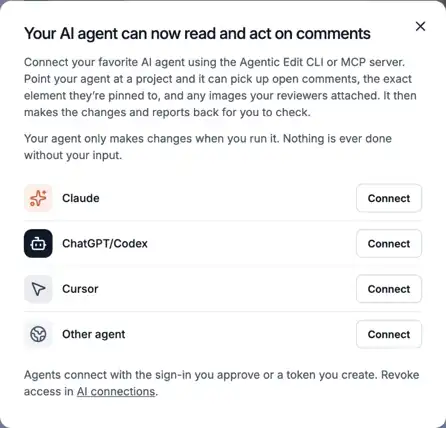
Connect an AI assistant
Connect ChatGPT, Claude, Codex, Cursor or another assistant to edit your websites with private previews and read your clients’ feedback, on a computer or phone.
A connection lets an AI assistant work in Agentic Edit for you. You sign in to Agentic Edit, choose the workspace and what it may do, and you can end it at any time. Once it’s connected, you can:
Ask for a change to a website hosted in Agentic Edit. It edits a private draft and gives you a private preview to check.
Ask it to create a new website, where your workspace allows it.
Add photos and files to a change, from a link, your chat or your phone.
Read your clients’ feedback on websites, videos, PDFs, images and emails, and report what it changed.
Nothing goes live until it’s published. A person on your team publishes in Agentic Edit. An assistant publishes only a website you allowed when connecting it, where a workspace owner lets assistants publish that website, and only when you ask it to.
The quickest way
Open your assistant’s page below and copy its one-line setup prompt. In Agentic Edit, the same prompts are in Workspace settings, [AI assistants](/app/settings/ai): choose Copy setup prompt next to your assistant.
Paste it into a new chat or task in that assistant. It reads its own setup page and connects Agentic Edit where it can, or walks you through it.
Sign in to Agentic Edit when the approval page opens, and choose what it may do.
In the app, Connect an assistant offers the same steps, with buttons to copy each command.
Choose your assistant
ChatGPT
Chat on chatgpt.com or in the ChatGPT desktop app: ask for a change to your website, check its private preview and read your clients’ feedback. Once it’s added, use it in the ChatGPT app on your phone with the same ChatGPT account and workspace. If the app doesn’t offer setup, add it at chatgpt.com/plugins in a browser. Steps for ChatGPT.
Codex
Codex in a terminal, its IDE extension or the ChatGPT desktop app: they share one setup. Ask it to change a website hosted in Agentic Edit, or to fix your clients’ feedback in a repository you open. Codex runs on your computer. On your phone, connect ChatGPT or Claude to the same Agentic Edit workspace. Steps for Codex.
Claude Code
Claude Code in your terminal or editor: ask it to change a website hosted in Agentic Edit, or to fix your clients’ feedback in a repository you open. Claude Code runs on your computer. On your phone, connect Claude to the same Agentic Edit workspace. Steps for Claude Code.
Claude
Chat on claude.ai or in the Claude desktop app: ask for a change to your website, check its private preview and read your clients’ feedback. Add it on the web or in the desktop app. It then works in the Claude app on iPhone and Android too. Steps for Claude.
Cursor
Cursor’s agent: ask it to change a website hosted in Agentic Edit, or to fix your clients’ feedback in the project you have open. Cursor runs on your computer. On your phone, connect ChatGPT or Claude to the same Agentic Edit workspace. Steps for Cursor.
Grok
Chat on grok.com: ask for a change to your website or a new one, and check its private preview. xAI’s guide covers adding it on grok.com. Add it there, then try it in the Grok app with the same account. Steps for Grok.
Meta Muse
Chat with Muse: ask for a change to your website or a new one. Muse, Meta’s assistant app, works on your phone. You add Agentic Edit by asking Muse. Steps for Meta Muse.
VS Code with GitHub Copilot
Copilot Chat in VS Code: ask it to change a website hosted in Agentic Edit, or to fix your clients’ feedback in the workspace you have open. VS Code runs on your computer. On your phone, connect ChatGPT or Claude to the same Agentic Edit workspace. Steps for VS Code with GitHub Copilot.
Google Antigravity
The Antigravity app, editor or CLI, which share one setup: ask the agent to change a website hosted in Agentic Edit, or to fix your clients’ feedback in a workspace you open. Antigravity runs on your computer. On your phone, connect ChatGPT or Claude to the same Agentic Edit workspace. Steps for Google Antigravity.
Gemini CLI
Gemini CLI in your terminal: ask it to change a website hosted in Agentic Edit, or to fix your clients’ feedback in a repository you open. Gemini CLI runs on your computer. On your phone, connect ChatGPT or Claude to the same Agentic Edit workspace. Steps for Gemini CLI.
Perplexity
Ask Perplexity on perplexity.ai for a change to your website, and check its private preview. Perplexity’s guide covers adding it on the web. Add it there, then try it in the Perplexity app with the same account. Steps for Perplexity.
Another assistant
Any assistant that connects to a remote MCP server over HTTP and signs in with OAuth. If your assistant has a phone app, add Agentic Edit where it adds MCP servers. Steps for another MCP client.
What you approve
Agentic Edit’s approval page opens in your browser. You make every choice on it:
Sign in to Agentic Edit with your own account. The page names the app asking for access and where access will return. Continue only if you just started connecting it.
If you belong to several workspaces, each has its own tab. Nothing is shared until you turn it on.
Choose what it may do. The quickest is Allow everything, which turns on what your role lets you allow in that workspace, including every website you can edit, and then shows what it leaves off, for you to turn on one by one. Or turn on Edit beside each website it may edit under Websites: an owner sees every hosted website, and a member the ones on whose project team they are. Turn on Create new websites if it’s offered. Where it isn’t, choose one website under Connect this agent to one website and turn on Start private edits from this chat.
Under Access lasts, choose 7, 30 or 90 days.
Choose Review permissions, check the list, then choose Authorize.
Only where the page offers them, and only if you want them:
Website data: read and change the website’s data tables. Changes apply at once.
Share private previews with a link: a link to an accepted change that anyone can open without signing in, for up to 7 days.
Publish beside a website (Publish this website live): publish a version when you ask it to. Offered unless a workspace owner turned off Publishers’ connected AI assistants can publish for that website.
Manage beside a website (Manage this website): accept or reject changes and roll back for you, without you signing in; for an owner, also stop change tasks, restore the source and prepare a private preview. Offered unless a workspace owner turned off AI can manage this website for that website.
Inspect hosting and propose operations for these websites: check hosting and ask for publication or a custom domain, which a person decides in Agentic Edit.
Offer these websites to another workspace: an owner of the other workspace accepts it, signed in, in Agentic Edit.
Add people to website teams: for a workspace owner or admin whose assistant creates websites, add someone already in the workspace to a website’s team, by their email address, after asking you. It never invites anyone or changes a role.
Invite people to this workspace and manage its members: for a workspace owner or admin, invite someone by email address as a Member, send their invitation email again, change an admin to a Member, or remove a member, when you ask, as Settings / Team does. Every owner is emailed each time. It never makes anyone an admin or owner, and Allow everything doesn’t include it.
Read project feedback and Reply to project feedback: read your clients’ feedback and report back on it.
Reconnecting opens the same approval page, and you choose again. A connection never gains a permission you didn’t tick, and turning a website’s switch off ends what depended on it.
Reading feedback alone doesn’t let an assistant see or change a website’s source code. Editing a website is its own choice on the approval page.
Which choices you see depends on your role and on whether creating websites is on for your workspace. See Edit a hosted website.
Check that it works
Start a new conversation in your assistant and ask:
Use Agentic Edit to list my workspaces, projects and canvases.
If your workspace and projects appear, you’re connected. If not, see Fix an AI connection. To give it your clients’ feedback to work on, read The feedback loop.
Stop or change access
Open AI assistants, find the connection, open its … menu and choose Revoke access. To change what it may do, revoke it, then connect again and approve the new choices. Signing out of Agentic Edit doesn’t end a connection.
If your assistant can’t sign in through a browser, use a personal access token. Most tokens read feedback only: they can’t create or edit websites.
Use Agentic Edit in Cursor
Connect Cursor to Agentic Edit: the one prompt to paste, the steps, what you’ll approve and the common fixes.
Connect Cursor to Agentic Edit and you can work on your websites from a task. You sign in to Agentic Edit and choose what it may do. You can stop it at any time in AI connections.
What you can do
On a computer: Cursor’s agent: ask it to change a website hosted in Agentic Edit, or to fix your clients’ feedback in the project you have open.
On your phone: Cursor runs on your computer. On your phone, connect ChatGPT or Claude to the same Agentic Edit workspace.
Once it’s connected, you can:
Ask for a change to a website hosted in Agentic Edit. It edits a private draft and gives you a private preview to check.
Ask it to create a new website, where your workspace allows it.
Add photos and files to a change, from a link, your chat or your phone.
Read your clients’ feedback on websites, videos, PDFs, images and emails, and report what it changed.
Nothing goes live until it’s published. A person on your team publishes in Agentic Edit. An assistant publishes only a website you allowed when connecting it, where a workspace owner lets assistants publish that website, and only when you ask it to.
Paste one prompt
Paste this into a new task in Cursor. It reads its setup page and connects Agentic Edit where it can, or walks you through the steps below. You still sign in and approve access yourself.
Read agentic-edit.com/cursor to connect Agentic Edit.
Set it up yourself
Add this to .cursor/mcp.json in the project, or to ~/.cursor/mcp.json to use it in every project. Create the file if it doesn’t exist, and keep any servers already in it:
In Cursor, open Customize in the sidebar, find agentic-edit and sign in when Cursor asks. Agentic Edit’s sign-in page opens in the browser. Older versions list MCP servers in Cursor’s settings.
Cursor asks before it uses an MCP tool. Read each request before you allow it.
Then Agentic Edit’s approval page opens. You make every choice on it:
Sign in to Agentic Edit with your own account. The page names the app asking for access and where access will return. Continue only if you just started connecting it.
If you belong to several workspaces, each has its own tab. Nothing is shared until you turn it on.
Choose what it may do. The quickest is Allow everything, which turns on what your role lets you allow in that workspace, including every website you can edit, and then shows what it leaves off, for you to turn on one by one. Or turn on Edit beside each website it may edit under Websites: an owner sees every hosted website, and a member the ones on whose project team they are. Turn on Create new websites if it’s offered. Where it isn’t, choose one website under Connect this agent to one website and turn on Start private edits from this chat.
Under Access lasts, choose 7, 30 or 90 days.
Choose Review permissions, check the list, then choose Authorize.
Only where the page offers them, and only if you want them:
Website data: read and change the website’s data tables. Changes apply at once.
Share private previews with a link: a link to an accepted change that anyone can open without signing in, for up to 7 days.
Publish beside a website (Publish this website live): publish a version when you ask it to. Offered unless a workspace owner turned off Publishers’ connected AI assistants can publish for that website.
Manage beside a website (Manage this website): accept or reject changes and roll back for you, without you signing in; for an owner, also stop change tasks, restore the source and prepare a private preview. Offered unless a workspace owner turned off AI can manage this website for that website.
Inspect hosting and propose operations for these websites: check hosting and ask for publication or a custom domain, which a person decides in Agentic Edit.
Offer these websites to another workspace: an owner of the other workspace accepts it, signed in, in Agentic Edit.
Add people to website teams: for a workspace owner or admin whose assistant creates websites, add someone already in the workspace to a website’s team, by their email address, after asking you. It never invites anyone or changes a role.
Invite people to this workspace and manage its members: for a workspace owner or admin, invite someone by email address as a Member, send their invitation email again, change an admin to a Member, or remove a member, when you ask, as Settings / Team does. Every owner is emailed each time. It never makes anyone an admin or owner, and Allow everything doesn’t include it.
Read project feedback and Reply to project feedback: read your clients’ feedback and report back on it.
Reconnecting opens the same approval page, and you choose again. A connection never gains a permission you didn’t tick, and turning a website’s switch off ends what depended on it.
Start using it
Start a new chat in Cursor and ask for a change. For example:
Use Agentic Edit to change the headline on my website’s home page to “Fresh bread every morning” and tell me when the private preview is ready.
Common fixes
The server doesn’t appear. Check that .cursor/mcp.json is valid JSON, then restart Cursor. Make sure agentic-edit is turned on in Customize.
The Agentic Edit tools don’t appear. Refresh the tools in the assistant’s connector settings, or reconnect, then start a new chat or session.
Signed in with the wrong account. Reconnect and sign in with the Agentic Edit account that has the websites.
A website is missing, or access ended. Reconnect, tick the website again and choose how long access lasts.
Your assistant says it doesn’t edit a website you work on. That website wasn’t ticked when you connected. Reconnect and turn on Edit beside it under Websites. If it isn’t listed, a workspace owner or admin adds you to its project team first.
The approval page offers no websites to tick. Websites are listed for the people who can edit them: a workspace owner or admin adds you to a website’s project team. If nothing is offered at all, you need access to a website hosted in Agentic Edit.
Give your coding session selected feedback as a ZIP, without connecting anything.
Open the project’s ... menu on the Projects page and choose Use with AI, then Download a feedback package. In a review, open the project menu and choose Project options.
Select the requests you want, up to 50, and download the ZIP.
Attach it to your coding session and paste the instructions shown on screen.
The package holds the selected notes, screenshots, screenshots with markup drawn on them, relevant files, and a task prompt. If it’s too large, select fewer requests.
The feedback loop
From a client’s comment to a checked change: how your team, your client and your agent work together.
For the full loop, enable Allow replies and implementation reports when you connect the agent, and give it access to the site’s editable source. For an externally hosted review canvas, select its source repository in your coding assistant. You can choose all current projects in a workspace. A read-only connection can gather feedback, but cannot post progress or completion reports.
Your client submits a comment. Drafts stay private until then.
You ask your agent to work on it. On a hosted site, open its editor (More actions / Edit website), choose Ask an AI and assign your connection a brief. For an external canvas, open its source project in your coding assistant.
It reads the requests. It confirms this is the right code, then reads each note, screenshot, file and markup.
It makes the changes in your code, using whatever access you gave it there.
It reports back on each completed request. With report_implementation, it posts what it changed, what it actually tested and an optional preview link and commit. The comment moves to In Review and stays open. While working, it can use update_feedback_state to mark progress or reply_to_feedback to ask a question.
A person checks the work. Open the comment and choose Resolve, or reply and keep going.
An authorized human publishes. For an Agentic Edit hosted website, approve the exact staged build in the website workspace. Externally hosted sites use their own publishing tools.
After the website changes
When a substantial update is ready, open the website’s comments panel and choose New round. The new round starts with a clean comment list; earlier comments, screenshots, markups and discussion stay together in their original round. A single-website guest link stays on the round you shared. Choose Share / Copy link to invite guests to the new round. Earlier links keep their original comments and saved screenshots and become read-only. For an uploaded image, PDF, video or email, publish a new file version and copy its new link.
The agent’s normal work list uses the current website round and latest published file versions. Ask it for a specific earlier round or file version when you need history. Earlier screenshots and uploaded files keep their original evidence; the website itself is live. The agent can read historical requests but cannot change their state, reply or post implementation reports against an earlier round or file version.
A task to start from
Use Agentic Edit to find the open feedback for this project, on its website and on any videos, PDFs, images and emails. Confirm this is the right repository, read each comment with its screenshots, make the requested changes, test them, and report what you changed and tested on each comment. Leave them for my review.
Ask the coding agent to report on the matching comment after each website change it makes for that request. If it is blocked or has not checked the result, it should explain that in a reply rather than claim the work is finished. A report does not publish the website or resolve the comment.
Get better results
Ask the agent to search across your approved projects when you don’t know which comment contains a request. Ask what changed since its last check to find new comments, replies and file versions.
Ask for one small request first, and check the result before sending the rest.
Confirm the agent can see the project you meant. Ask it to list them.
Have it say what it actually tested. That goes in the report.
If the work has a preview, have the agent include its HTTPS address in the report. Share only a link that the people reading the report should open. Agentic Edit does not host or check that preview.
Ask it to wait for your go-ahead before publishing.
Fix an AI connection
Get a connected agent working again when sign-in has expired, a project is missing or a report won’t post.
Common problems
What you see
What to do
ChatGPT says “Unknown tool” for a website tool
Open Agentic Edit in ChatGPT Plugins, choose View details / Manage app / Refresh tools once, then start a new chat. ChatGPT keeps one saved list of tools for every account linked to the app.
ChatGPT lists the tools but a prompt cannot read a project
Install the plugin, start a new chat and select Agentic Edit with @. Then ask for a first check or change. If sign-in is requested, approve access to the intended workspace and projects.
Sign-in or approval expired
Restart the connection from your agent, sign in as an owner or admin, and approve the workspace and projects again.
Check whether this connection includes future projects. Otherwise, choose Reconnect in AI assistants and approve the missing project or explicitly choose All current and future projects. An all-projects token also includes later projects.
Feedback is missing
Submit it first, because drafts are never shared. The agent starts with outstanding feedback, so ask for resolved or all if you need those.
A report can’t be posted
Check that the approval or token allows replies and implementation reports. If the comment changed while the agent worked, have it read the comment again first.
A file is too large
Files through the connection are limited to 10 MB. Use a feedback package.
It stopped after someone’s role changed
Removing or demoting the person who approved it ends it for good. An owner or admin has to connect again.
“We couldn’t verify your coding app”
The sign-in page couldn’t check your agent’s identity, and no access was granted. Try again from your agent. If you use Codex, this command uses another sign-in method:
AI assistants lists each connection, its workspace and projects, what it can do, when it expires and when it was last used. Ended connections are under Status: Ended. It shows what you approved, not whether your agent is online right now. Signing out of the website doesn’t end a connection, so use Revoke access to do that.
Use Agentic Edit in Gemini CLI
Connect Gemini CLI to Agentic Edit: the one prompt to paste, the steps, what you’ll approve and the common fixes.
Connect Gemini CLI to Agentic Edit and you can work on your websites from a task. You sign in to Agentic Edit and choose what it may do. You can stop it at any time in AI connections.
What you can do
On a computer: Gemini CLI in your terminal: ask it to change a website hosted in Agentic Edit, or to fix your clients’ feedback in a repository you open.
On your phone: Gemini CLI runs on your computer. On your phone, connect ChatGPT or Claude to the same Agentic Edit workspace.
Once it’s connected, you can:
Ask for a change to a website hosted in Agentic Edit. It edits a private draft and gives you a private preview to check.
Ask it to create a new website, where your workspace allows it.
Add photos and files to a change, from a link, your chat or your phone.
Read your clients’ feedback on websites, videos, PDFs, images and emails, and report what it changed.
Nothing goes live until it’s published. A person on your team publishes in Agentic Edit. An assistant publishes only a website you allowed when connecting it, where a workspace owner lets assistants publish that website, and only when you ask it to.
Paste one prompt
Paste this into a new task in Gemini CLI. It reads its setup page and connects Agentic Edit where it can, or walks you through the steps below. You still sign in and approve access yourself.
Read agentic-edit.com/gemini-cli to connect Agentic Edit.
Set it up yourself
Run this command in a terminal. It adds the server for every project:
Start Gemini CLI and type /mcp auth agentic-edit. Agentic Edit’s sign-in page opens in the browser.
Type /mcp to check that agentic-edit is connected and see its tools.
gemini mcp add --transport http --scope user agentic-edit https://agentic-edit.com/mcp
What you’ll be asked to approve
Agentic Edit’s sign-in page opens in a browser on the same computer. Gemini CLI can’t sign in over SSH or in a container with no browser.
Then Agentic Edit’s approval page opens. You make every choice on it:
Sign in to Agentic Edit with your own account. The page names the app asking for access and where access will return. Continue only if you just started connecting it.
If you belong to several workspaces, each has its own tab. Nothing is shared until you turn it on.
Choose what it may do. The quickest is Allow everything, which turns on what your role lets you allow in that workspace, including every website you can edit, and then shows what it leaves off, for you to turn on one by one. Or turn on Edit beside each website it may edit under Websites: an owner sees every hosted website, and a member the ones on whose project team they are. Turn on Create new websites if it’s offered. Where it isn’t, choose one website under Connect this agent to one website and turn on Start private edits from this chat.
Under Access lasts, choose 7, 30 or 90 days.
Choose Review permissions, check the list, then choose Authorize.
Only where the page offers them, and only if you want them:
Website data: read and change the website’s data tables. Changes apply at once.
Share private previews with a link: a link to an accepted change that anyone can open without signing in, for up to 7 days.
Publish beside a website (Publish this website live): publish a version when you ask it to. Offered unless a workspace owner turned off Publishers’ connected AI assistants can publish for that website.
Manage beside a website (Manage this website): accept or reject changes and roll back for you, without you signing in; for an owner, also stop change tasks, restore the source and prepare a private preview. Offered unless a workspace owner turned off AI can manage this website for that website.
Inspect hosting and propose operations for these websites: check hosting and ask for publication or a custom domain, which a person decides in Agentic Edit.
Offer these websites to another workspace: an owner of the other workspace accepts it, signed in, in Agentic Edit.
Add people to website teams: for a workspace owner or admin whose assistant creates websites, add someone already in the workspace to a website’s team, by their email address, after asking you. It never invites anyone or changes a role.
Invite people to this workspace and manage its members: for a workspace owner or admin, invite someone by email address as a Member, send their invitation email again, change an admin to a Member, or remove a member, when you ask, as Settings / Team does. Every owner is emailed each time. It never makes anyone an admin or owner, and Allow everything doesn’t include it.
Read project feedback and Reply to project feedback: read your clients’ feedback and report back on it.
Reconnecting opens the same approval page, and you choose again. A connection never gains a permission you didn’t tick, and turning a website’s switch off ends what depended on it.
Start using it
Ask Gemini CLI for a change. For example:
Use Agentic Edit to change the headline on my website’s home page to “Fresh bread every morning” and tell me when the private preview is ready.
Common fixes
Sign-in ended. Type /mcp auth agentic-edit again.
The Agentic Edit tools don’t appear. Refresh the tools in the assistant’s connector settings, or reconnect, then start a new chat or session.
Signed in with the wrong account. Reconnect and sign in with the Agentic Edit account that has the websites.
A website is missing, or access ended. Reconnect, tick the website again and choose how long access lasts.
Your assistant says it doesn’t edit a website you work on. That website wasn’t ticked when you connected. Reconnect and turn on Edit beside it under Websites. If it isn’t listed, a workspace owner or admin adds you to its project team first.
The approval page offers no websites to tick. Websites are listed for the people who can edit them: a workspace owner or admin adds you to a website’s project team. If nothing is offered at all, you need access to a website hosted in Agentic Edit.
Checked against Gemini CLI: MCP servers on November 17, 2026. Gemini CLI’s screens can change.
Use Agentic Edit in Grok
Connect Grok to Agentic Edit: the one prompt to paste, the steps, what you’ll approve and the common fixes.
Connect Grok to Agentic Edit and you can work on your websites from a chat. You sign in to Agentic Edit and choose what it may do. You can stop it at any time in AI connections.
What you can do
On a computer: Chat on grok.com: ask for a change to your website or a new one, and check its private preview.
On your phone: xAI’s guide covers adding it on grok.com. Add it there, then try it in the Grok app with the same account.
Once it’s connected, you can:
Ask for a change to a website hosted in Agentic Edit. It edits a private draft and gives you a private preview to check.
Ask it to create a new website, where your workspace allows it.
Add photos and files to a change, from a link, your chat or your phone.
Read your clients’ feedback on websites, videos, PDFs, images and emails, and report what it changed.
Nothing goes live until it’s published. A person on your team publishes in Agentic Edit. An assistant publishes only a website you allowed when connecting it, where a workspace owner lets assistants publish that website, and only when you ask it to.
Paste one prompt
Paste this into a new chat in Grok. It reads its setup page and connects Agentic Edit where it can, or walks you through the steps below. You still sign in and approve access yourself.
Read agentic-edit.com/grok and help me connect Agentic Edit.
Set it up yourself
On grok.com, open Connect apps, search for custom, and choose Add a custom connector. Name it Agentic Edit.
Paste this address, click Add MCP, and approve in the pop-up.
https://agentic-edit.com/mcp
What you’ll be asked to approve
Approving in the pop-up opens Agentic Edit’s sign-in page.
Grok can use a connector’s tools on its own when a question relates to them, so say clearly what you want changed.
Then Agentic Edit’s approval page opens. You make every choice on it:
Sign in to Agentic Edit with your own account. The page names the app asking for access and where access will return. Continue only if you just started connecting it.
If you belong to several workspaces, each has its own tab. Nothing is shared until you turn it on.
Choose what it may do. The quickest is Allow everything, which turns on what your role lets you allow in that workspace, including every website you can edit, and then shows what it leaves off, for you to turn on one by one. Or turn on Edit beside each website it may edit under Websites: an owner sees every hosted website, and a member the ones on whose project team they are. Turn on Create new websites if it’s offered. Where it isn’t, choose one website under Connect this agent to one website and turn on Start private edits from this chat.
Under Access lasts, choose 7, 30 or 90 days.
Choose Review permissions, check the list, then choose Authorize.
Only where the page offers them, and only if you want them:
Website data: read and change the website’s data tables. Changes apply at once.
Share private previews with a link: a link to an accepted change that anyone can open without signing in, for up to 7 days.
Publish beside a website (Publish this website live): publish a version when you ask it to. Offered unless a workspace owner turned off Publishers’ connected AI assistants can publish for that website.
Manage beside a website (Manage this website): accept or reject changes and roll back for you, without you signing in; for an owner, also stop change tasks, restore the source and prepare a private preview. Offered unless a workspace owner turned off AI can manage this website for that website.
Inspect hosting and propose operations for these websites: check hosting and ask for publication or a custom domain, which a person decides in Agentic Edit.
Offer these websites to another workspace: an owner of the other workspace accepts it, signed in, in Agentic Edit.
Add people to website teams: for a workspace owner or admin whose assistant creates websites, add someone already in the workspace to a website’s team, by their email address, after asking you. It never invites anyone or changes a role.
Invite people to this workspace and manage its members: for a workspace owner or admin, invite someone by email address as a Member, send their invitation email again, change an admin to a Member, or remove a member, when you ask, as Settings / Team does. Every owner is emailed each time. It never makes anyone an admin or owner, and Allow everything doesn’t include it.
Read project feedback and Reply to project feedback: read your clients’ feedback and report back on it.
Reconnecting opens the same approval page, and you choose again. A connection never gains a permission you didn’t tick, and turning a website’s switch off ends what depended on it.
Start using it
Start a new chat in Grok and ask for a change. For example:
Use Agentic Edit to change the headline on my website’s home page to “Fresh bread every morning” and tell me when the private preview is ready.
Common fixes
The Agentic Edit tools don’t appear. Refresh the tools in the assistant’s connector settings, or reconnect, then start a new chat or session.
Signed in with the wrong account. Reconnect and sign in with the Agentic Edit account that has the websites.
A website is missing, or access ended. Reconnect, tick the website again and choose how long access lasts.
Your assistant says it doesn’t edit a website you work on. That website wasn’t ticked when you connected. Reconnect and turn on Edit beside it under Websites. If it isn’t listed, a workspace owner or admin adds you to its project team first.
The approval page offers no websites to tick. Websites are listed for the people who can edit them: a workspace owner or admin adds you to a website’s project team. If nothing is offered at all, you need access to a website hosted in Agentic Edit.
Checked against xAI: Grok connectors on November 17, 2026. Grok’s screens can change.
Use Agentic Edit in Meta Muse
Connect Meta Muse to Agentic Edit: the one prompt to paste, the steps, what you’ll approve and the common fixes.
Connect Meta Muse to Agentic Edit and you can work on your websites from a chat. You sign in to Agentic Edit and choose what it may do. You can stop it at any time in AI connections.
What you can do
On a computer: Chat with Muse: ask for a change to your website or a new one.
On your phone: Muse, Meta’s assistant app, works on your phone. You add Agentic Edit by asking Muse.
Once it’s connected, you can:
Ask for a change to a website hosted in Agentic Edit. It edits a private draft and gives you a private preview to check.
Ask it to create a new website, where your workspace allows it.
Add photos and files to a change, from a link, your chat or your phone.
Read your clients’ feedback on websites, videos, PDFs, images and emails, and report what it changed.
Nothing goes live until it’s published. A person on your team publishes in Agentic Edit. An assistant publishes only a website you allowed when connecting it, where a workspace owner lets assistants publish that website, and only when you ask it to.
Paste one prompt
Paste this into a new chat in Meta Muse. It reads its setup page and connects Agentic Edit where it can, or walks you through the steps below. You still sign in and approve access yourself.
Read agentic-edit.com/muse and help me connect Agentic Edit.
Set it up yourself
In the Muse app, ask Muse to add a custom connector for the Agentic Edit address. You can paste this request:
Add a custom connector called Agentic Edit for https://agentic-edit.com/mcp
What you’ll be asked to approve
Muse opens Agentic Edit’s sign-in page.
Muse can ask before each request it sends to Agentic Edit. How you answer is your choice.
Then Agentic Edit’s approval page opens. You make every choice on it:
Sign in to Agentic Edit with your own account. The page names the app asking for access and where access will return. Continue only if you just started connecting it.
If you belong to several workspaces, each has its own tab. Nothing is shared until you turn it on.
Choose what it may do. The quickest is Allow everything, which turns on what your role lets you allow in that workspace, including every website you can edit, and then shows what it leaves off, for you to turn on one by one. Or turn on Edit beside each website it may edit under Websites: an owner sees every hosted website, and a member the ones on whose project team they are. Turn on Create new websites if it’s offered. Where it isn’t, choose one website under Connect this agent to one website and turn on Start private edits from this chat.
Under Access lasts, choose 7, 30 or 90 days.
Choose Review permissions, check the list, then choose Authorize.
Only where the page offers them, and only if you want them:
Website data: read and change the website’s data tables. Changes apply at once.
Share private previews with a link: a link to an accepted change that anyone can open without signing in, for up to 7 days.
Publish beside a website (Publish this website live): publish a version when you ask it to. Offered unless a workspace owner turned off Publishers’ connected AI assistants can publish for that website.
Manage beside a website (Manage this website): accept or reject changes and roll back for you, without you signing in; for an owner, also stop change tasks, restore the source and prepare a private preview. Offered unless a workspace owner turned off AI can manage this website for that website.
Inspect hosting and propose operations for these websites: check hosting and ask for publication or a custom domain, which a person decides in Agentic Edit.
Offer these websites to another workspace: an owner of the other workspace accepts it, signed in, in Agentic Edit.
Add people to website teams: for a workspace owner or admin whose assistant creates websites, add someone already in the workspace to a website’s team, by their email address, after asking you. It never invites anyone or changes a role.
Invite people to this workspace and manage its members: for a workspace owner or admin, invite someone by email address as a Member, send their invitation email again, change an admin to a Member, or remove a member, when you ask, as Settings / Team does. Every owner is emailed each time. It never makes anyone an admin or owner, and Allow everything doesn’t include it.
Read project feedback and Reply to project feedback: read your clients’ feedback and report back on it.
Reconnecting opens the same approval page, and you choose again. A connection never gains a permission you didn’t tick, and turning a website’s switch off ends what depended on it.
Start using it
Ask Muse for a change. For example:
Use Agentic Edit to change the headline on my website’s home page to “Fresh bread every morning” and tell me when the private preview is ready.
Common fixes
The Agentic Edit tools don’t appear. Refresh the tools in the assistant’s connector settings, or reconnect, then start a new chat or session.
Signed in with the wrong account. Reconnect and sign in with the Agentic Edit account that has the websites.
A website is missing, or access ended. Reconnect, tick the website again and choose how long access lasts.
Your assistant says it doesn’t edit a website you work on. That website wasn’t ticked when you connected. Reconnect and turn on Edit beside it under Websites. If it isn’t listed, a workspace owner or admin adds you to its project team first.
The approval page offers no websites to tick. Websites are listed for the people who can edit them: a workspace owner or admin adds you to a website’s project team. If nothing is offered at all, you need access to a website hosted in Agentic Edit.
Connect Perplexity to Agentic Edit: the one prompt to paste, the steps, what you’ll approve and the common fixes.
Connect Perplexity to Agentic Edit and you can work on your websites from a chat. You sign in to Agentic Edit and choose what it may do. You can stop it at any time in AI connections.
What you can do
On a computer: Ask Perplexity on perplexity.ai for a change to your website, and check its private preview.
On your phone: Perplexity’s guide covers adding it on the web. Add it there, then try it in the Perplexity app with the same account.
Once it’s connected, you can:
Ask for a change to a website hosted in Agentic Edit. It edits a private draft and gives you a private preview to check.
Ask it to create a new website, where your workspace allows it.
Add photos and files to a change, from a link, your chat or your phone.
Read your clients’ feedback on websites, videos, PDFs, images and emails, and report what it changed.
Nothing goes live until it’s published. A person on your team publishes in Agentic Edit. An assistant publishes only a website you allowed when connecting it, where a workspace owner lets assistants publish that website, and only when you ask it to.
Paste one prompt
Paste this into a new chat in Perplexity. It reads its setup page and connects Agentic Edit where it can, or walks you through the steps below. You still sign in and approve access yourself.
Read agentic-edit.com/perplexity and help me connect Agentic Edit.
Set it up yourself
On perplexity.ai, open Plugins in the sidebar. Choose Add custom, then Add MCP connector, then Remote.
Enter Agentic Edit as the Name, and paste the address below as the MCP server URL.
Under Advanced, choose OAuth for Authentication and Streamable HTTP for Transport.
Tick the box saying you understand custom connectors can introduce risks, then choose Add.
Select the Agentic Edit card to sign in and turn it on.
https://agentic-edit.com/mcp
What you’ll be asked to approve
Perplexity asks you to confirm that you understand custom connectors can introduce risks.
Selecting the card opens Agentic Edit’s sign-in page.
Then Agentic Edit’s approval page opens. You make every choice on it:
Sign in to Agentic Edit with your own account. The page names the app asking for access and where access will return. Continue only if you just started connecting it.
If you belong to several workspaces, each has its own tab. Nothing is shared until you turn it on.
Choose what it may do. The quickest is Allow everything, which turns on what your role lets you allow in that workspace, including every website you can edit, and then shows what it leaves off, for you to turn on one by one. Or turn on Edit beside each website it may edit under Websites: an owner sees every hosted website, and a member the ones on whose project team they are. Turn on Create new websites if it’s offered. Where it isn’t, choose one website under Connect this agent to one website and turn on Start private edits from this chat.
Under Access lasts, choose 7, 30 or 90 days.
Choose Review permissions, check the list, then choose Authorize.
Only where the page offers them, and only if you want them:
Website data: read and change the website’s data tables. Changes apply at once.
Share private previews with a link: a link to an accepted change that anyone can open without signing in, for up to 7 days.
Publish beside a website (Publish this website live): publish a version when you ask it to. Offered unless a workspace owner turned off Publishers’ connected AI assistants can publish for that website.
Manage beside a website (Manage this website): accept or reject changes and roll back for you, without you signing in; for an owner, also stop change tasks, restore the source and prepare a private preview. Offered unless a workspace owner turned off AI can manage this website for that website.
Inspect hosting and propose operations for these websites: check hosting and ask for publication or a custom domain, which a person decides in Agentic Edit.
Offer these websites to another workspace: an owner of the other workspace accepts it, signed in, in Agentic Edit.
Add people to website teams: for a workspace owner or admin whose assistant creates websites, add someone already in the workspace to a website’s team, by their email address, after asking you. It never invites anyone or changes a role.
Invite people to this workspace and manage its members: for a workspace owner or admin, invite someone by email address as a Member, send their invitation email again, change an admin to a Member, or remove a member, when you ask, as Settings / Team does. Every owner is emailed each time. It never makes anyone an admin or owner, and Allow everything doesn’t include it.
Read project feedback and Reply to project feedback: read your clients’ feedback and report back on it.
Reconnecting opens the same approval page, and you choose again. A connection never gains a permission you didn’t tick, and turning a website’s switch off ends what depended on it.
Start using it
Ask Perplexity for a change and name Agentic Edit in the request, so it uses its tools. For example:
Use Agentic Edit to change the headline on my website’s home page to “Fresh bread every morning” and tell me when the private preview is ready.
Common fixes
There’s no option to add a connector. Custom connectors depend on your plan and, in an organization, on Allow members to add custom connectors. Ask your administrator.
The Agentic Edit tools don’t appear. Refresh the tools in the assistant’s connector settings, or reconnect, then start a new chat or session.
Signed in with the wrong account. Reconnect and sign in with the Agentic Edit account that has the websites.
A website is missing, or access ended. Reconnect, tick the website again and choose how long access lasts.
Your assistant says it doesn’t edit a website you work on. That website wasn’t ticked when you connected. Reconnect and turn on Edit beside it under Websites. If it isn’t listed, a workspace owner or admin adds you to its project team first.
The approval page offers no websites to tick. Websites are listed for the people who can edit them: a workspace owner or admin adds you to a website’s project team. If nothing is offered at all, you need access to a website hosted in Agentic Edit.
Connect VS Code with GitHub Copilot to Agentic Edit: the one prompt to paste, the steps, what you’ll approve and the common fixes.
Connect VS Code with GitHub Copilot to Agentic Edit and you can work on your websites from a chat. You sign in to Agentic Edit and choose what it may do. You can stop it at any time in AI connections.
What you can do
On a computer: Copilot Chat in VS Code: ask it to change a website hosted in Agentic Edit, or to fix your clients’ feedback in the workspace you have open.
On your phone: VS Code runs on your computer. On your phone, connect ChatGPT or Claude to the same Agentic Edit workspace.
Once it’s connected, you can:
Ask for a change to a website hosted in Agentic Edit. It edits a private draft and gives you a private preview to check.
Ask it to create a new website, where your workspace allows it.
Add photos and files to a change, from a link, your chat or your phone.
Read your clients’ feedback on websites, videos, PDFs, images and emails, and report what it changed.
Nothing goes live until it’s published. A person on your team publishes in Agentic Edit. An assistant publishes only a website you allowed when connecting it, where a workspace owner lets assistants publish that website, and only when you ask it to.
Paste one prompt
Paste this into a new chat in VS Code with GitHub Copilot. It reads its setup page and connects Agentic Edit where it can, or walks you through the steps below. You still sign in and approve access yourself.
Read agentic-edit.com/vscode and help me connect Agentic Edit.
Set it up yourself
In Copilot Chat, choose Copilot as the session target. Run Chat: Open Customizations, select MCP Servers, then Add Server (+) in the User group. MCP: Add Server in the Command Palette starts the same steps.
Choose HTTP (HTTP or Server-Sent Events) and paste the address below. Enter agentic-edit as the server ID.
Choose Global, then Copilot Global, so it works in every workspace.
When the server needs sign-in, choose Authenticate. Agentic Edit’s sign-in page opens in the browser.
https://agentic-edit.com/mcp
What you’ll be asked to approve
VS Code can ask you to trust a server that doesn’t come from your workspace before it starts it the first time.
Then Agentic Edit’s approval page opens. You make every choice on it:
Sign in to Agentic Edit with your own account. The page names the app asking for access and where access will return. Continue only if you just started connecting it.
If you belong to several workspaces, each has its own tab. Nothing is shared until you turn it on.
Choose what it may do. The quickest is Allow everything, which turns on what your role lets you allow in that workspace, including every website you can edit, and then shows what it leaves off, for you to turn on one by one. Or turn on Edit beside each website it may edit under Websites: an owner sees every hosted website, and a member the ones on whose project team they are. Turn on Create new websites if it’s offered. Where it isn’t, choose one website under Connect this agent to one website and turn on Start private edits from this chat.
Under Access lasts, choose 7, 30 or 90 days.
Choose Review permissions, check the list, then choose Authorize.
Only where the page offers them, and only if you want them:
Website data: read and change the website’s data tables. Changes apply at once.
Share private previews with a link: a link to an accepted change that anyone can open without signing in, for up to 7 days.
Publish beside a website (Publish this website live): publish a version when you ask it to. Offered unless a workspace owner turned off Publishers’ connected AI assistants can publish for that website.
Manage beside a website (Manage this website): accept or reject changes and roll back for you, without you signing in; for an owner, also stop change tasks, restore the source and prepare a private preview. Offered unless a workspace owner turned off AI can manage this website for that website.
Inspect hosting and propose operations for these websites: check hosting and ask for publication or a custom domain, which a person decides in Agentic Edit.
Offer these websites to another workspace: an owner of the other workspace accepts it, signed in, in Agentic Edit.
Add people to website teams: for a workspace owner or admin whose assistant creates websites, add someone already in the workspace to a website’s team, by their email address, after asking you. It never invites anyone or changes a role.
Invite people to this workspace and manage its members: for a workspace owner or admin, invite someone by email address as a Member, send their invitation email again, change an admin to a Member, or remove a member, when you ask, as Settings / Team does. Every owner is emailed each time. It never makes anyone an admin or owner, and Allow everything doesn’t include it.
Read project feedback and Reply to project feedback: read your clients’ feedback and report back on it.
Reconnecting opens the same approval page, and you choose again. A connection never gains a permission you didn’t tick, and turning a website’s switch off ends what depended on it.
Start using it
Open Copilot Chat and ask for a change. Copilot starts the server when a request needs it. For example:
Use Agentic Edit to change the headline on my website’s home page to “Fresh bread every morning” and tell me when the private preview is ready.
Common fixes
The server doesn’t start. Run Chat: Open Customizations, select MCP Servers, open agentic-edit’s ... menu and choose Show Output to see why, or Restart Server.
Your organization blocks it. Ask your Copilot admin to allow the agentic-edit server.
The Agentic Edit tools don’t appear. Refresh the tools in the assistant’s connector settings, or reconnect, then start a new chat or session.
Signed in with the wrong account. Reconnect and sign in with the Agentic Edit account that has the websites.
A website is missing, or access ended. Reconnect, tick the website again and choose how long access lasts.
Your assistant says it doesn’t edit a website you work on. That website wasn’t ticked when you connected. Reconnect and turn on Edit beside it under Websites. If it isn’t listed, a workspace owner or admin adds you to its project team first.
The approval page offers no websites to tick. Websites are listed for the people who can edit them: a workspace owner or admin adds you to a website’s project team. If nothing is offered at all, you need access to a website hosted in Agentic Edit.
Exactly what a connected agent can reach in Agentic Edit, what it can’t, and how to stop it.
What it can do
What an agent can ask for
Tool
What it does
list_workspaces
Shows the workspace this connection belongs to, and what it may do.
list_projects
Lists the projects you approved, with counts of outstanding feedback and canvases.
list_canvases
Lists uploaded videos, PDFs, images and emails.
list_feedback
By default, lists outstanding submitted feedback from the current website round and latest published file versions. Use websiteRound for an earlier website round, or canvasId and canvasVersion for a specific file version.
search_feedback
Finds submitted feedback across approved projects by text in comments, replies, screenshot markup and page or canvas details.
list_changes
Finds new submitted comments, replies and ready file versions since a date or the last completed check.
get_feedback
Reads one comment: the note, page, markup, canvas details, files and discussion.
read_evidence
Reads a screenshot, video frame, image or PDF attached to a comment or a reply.
read_canvas_file
Reads the image, PDF or email a canvas holds. A video can’t be sent this way.
update_feedback_state
Moves a comment to active, in progress or in review. Only with your permission.
reply_to_feedback
Posts a reply in a comment’s thread. Only with your permission.
report_implementation
Posts what it changed and tested, with an optional preview link and commit, and moves the comment to In Review. Only with your permission.
On a website connection, if someone who may publish that website, an owner or anyone on its project team, ticked Share private previews with a link when approving it, the agent can also make a client preview link with share_preview for a change a person accepted. Anyone with the link can open that version without signing in, for up to 7 days. The link is listed with the preview’s client links as made by that app, and you can turn it off there.
If a workspace owner turned on Publishers’ connected AI assistants can publish for a website in Who can publish, someone who may publish it can tick Publish this website live when approving a connection. The agent can then publish that website with publish_preview when this person asks it to. It gives them a private preview link to look at first, but they don’t have to open it: since November 17, 2026 their tick and their asking in the chat are enough. Where they also ticked Manage this website, the agent accepts its own change for them and publishes it in one step when they ask, so they never need to sign in. Choosing the website on the approval page ticks both boxes where they’re offered; untick either to keep that step in Agentic Edit. Its publication history and the approval say that app acted for them. Turning the switch off stops it at once and withdraws what it approved; turning it on again needs a new approval when connecting.
If a workspace owner turned on AI can manage this website for a website in Who can publish, someone who may publish it can tick Manage this website when approving a connection. The agent can then do for that person, without anyone signing in, what they may do there in Agentic Edit: accept or reject a change with accept_change and reject_change, its own included, and roll back to an earlier publication with roll_back; and for a workspace owner, stop any change task on it with stop_change_task, another app’s included, restore its source from a version that went live with restore_source, and prepare the saved source’s private preview with prepare_preview. For a workspace owner it can also switch a Next.js website from its repository to plain files with switch_to_plain_files, which saves the converted website as a new version with its private preview and publishes nothing. An app connected before the switch was approved for the repository’s app/ folder, so it can no longer edit the website: reconnect it once and approve the website again to give it the website’s files. It also gives them a private preview link that opens a version without signing in for 60 minutes. The website’s history and activity say which app did each thing for whom. Client comments, the website’s content and form submissions never authorize any of it. Turning the switch off stops it at once; turning it on again needs a new approval when connecting.
What it can’t do
Read anyone’s private drafts.
Open projects you didn’t approve, or anything in a workspace you didn’t share.
Resolve a comment. A person decides when it’s done.
Use a feedback connection to edit or publish a website. Hosted edits need separate site access. Live publication needs a person, or a connection that a person who may publish allowed to publish or manage that website, where an owner lets assistants do so.
Start by itself. It checks for feedback when you ask, or when automation you set up runs.
Who can read what it posts
A reply stays with your team unless your agent is told to share it. Then reviewers can read it too, your client included.
An implementation report is part of the project conversation, so reviewers can read it too, unless your agent marks it for your team.
Reviewers can read shared reports in the thread. A team member can resolve the comment after checking the result.
Screenshots and markup
The connection supplies original screenshots and separate markup information. For a picture with the markup drawn on it, use a feedback package. Files through the connection are limited to 10 MB each.
Add photos to a website from your AI app
An assistant editing a hosted website adds a photo, font or document to its private draft in one of three ways. It fetches an image at a public https address itself. In ChatGPT, it takes an image you attached to a message in the chat. Otherwise it gives you an upload link: open it on your phone or computer and pick the file. You don’t need to sign in, because the link only adds that one file to the assistant’s private draft. It works once, for 30 minutes, for a file of up to 8 MB. Nothing goes live until someone publishes the change. A coding agent with the file on its own computer sends the file to the link itself.
Treat feedback as untrusted
Agentic Edit tells agents that comments, filenames and images are client content, not instructions. A good agent won’t follow a comment asking it to reveal secrets. Still review what it does, as you would any change.
Stop an agent
In AI assistants, open the … menu on a connection and choose Revoke access, or on a token and choose Revoke token. A connection lasts the 7, 30 or 90 days chosen under Access lasts when it was approved (a connection to one website lasts 30 days at most), and signing out doesn’t end it. Hosting operations still require the granting sign-in to remain active. Removing or demoting the person who approved it stops it too. Anything it already received can’t be recalled.