Attach a screen recording, image or PDF to a comment or reply.
On a comment’s card, choose the paperclip. In the full editor, choose Add reference files.
Pick your files. They upload while you keep writing.
Choose Post comment.
What you can attach
Item
Limit
File types
PNG, JPEG, PDF, MP4, MOV or WebM
Size
25 MB per PDF, 20 MB per video, 5 MB per image
How many
Eight on one comment or reply
Only people who can see the comment or reply can open its files. Files count toward your workspace’s storage. For a connected coding agent, use Export for AI for videos and PDFs over 10 MB.
If a file won’t attach
Wrong type or too big. Attach a PDF up to 25 MB, an MP4, MOV or WebM clip up to 20 MB, or a PNG or JPEG up to 5 MB. To review a larger PDF page by page, ask the project team to add it as a document canvas (up to 100 MB).
The workspace is out of storage. Saved feedback stays available, but new files wait. See What happens at a limit.
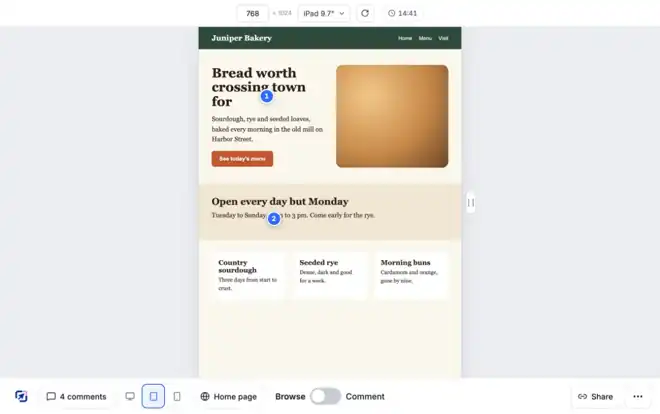
Look at desktop, tablet or phone sizes
Check how the website looks on a phone, a tablet or a desktop without leaving the review.
Every review can show the website as a Phone, a Tablet or a Desktop. The same page redraws at the new size, in the same browser, so you stay where you were.
On a computer
A review starts as Desktop, filling your window up to 1920 pixels wide. The review toolbar runs along the bottom, under the website. Its device button, such as Desktop · 100%, opens Preview device: the zoom, Phone, Tablet or Desktop, a real device’s size, and more.
The device button on the toolbar opens the size and zoom controls.
Preview device
Control
What it does
Zoom
Minus and plus zoom the website; Fit shows all of it; Pan lets you drag it around. A trackpad pinch, or Ctrl or Cmd and scroll, zooms too.
Phone button
Shows the page 390 pixels wide.
Tablet button
Shows the page 768 pixels wide.
The width box
Type any width from 320 to 1920 pixels and press Enter.
The device list
Pick a real device, such as an iPhone or an iPad.
The turn button
Turns a phone or tablet on its side, and back.
The handle beside the preview
Drag it to any width.
It also shows how much time this browser has left. Under three minutes, the device button says so, in amber.
On a phone
The device button in the review toolbar names the current size, such as Phone. It opens Preview device, where you choose Phone, Tablet or Desktop, or a real device from the lists below them. Phone means your own phone’s screen, and Turn switches between portrait and landscape.
Desktop opens a 1280 × 800 window scaled to fit your phone. Swipe inside the preview to scroll the website, or use Zoom in to read it at a larger size. The 1440-wide option shows a 1440 × 900 window.
Comments remember the size
A screenshot is taken at the size you are viewing, so your team sees the page as you saw it. Leaving a comment at phone width is the clearest way to report a phone layout problem.
Draw on the screen
Mark up a screenshot with arrows, boxes, highlights and text when words alone won’t do.
Mark up the whole view
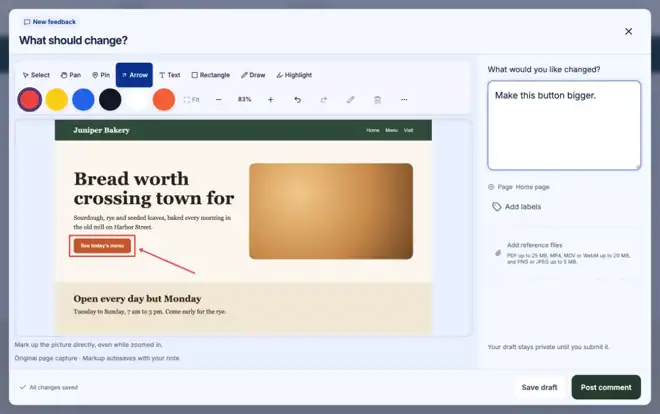
In the review, choose More, then Draw on the page. It turns on Comment and captures the whole view, with no pin.
Agentic Edit captures what’s on screen and opens it under What should change?
Choose a tool along the top and draw: Pin, Arrow, Text, Rectangle, Draw or Highlight.
Write your note beside the picture, then choose Post comment.
The tools run along the top, and the note sits beside the picture.
Mark up a comment you already started
On a new comment’s card, choose the pen. Your note and files come with you, on the same screenshot.
Getting around
Pan moves around the picture without drawing, and Fit shows all of it.
The minus and plus buttons zoom. You can draw at any zoom.
Choose Select, then click a mark to move it, change its color, or delete just that mark. Undo restores it.
What gets saved
Your markup is saved separately, and the original screenshot stays unchanged.
Everything autosaves as a private draft until you post it.
Finish a review
See what is about to go, send it all in one step, and let the team know you are done.
Drafts and posted comments
A draft autosaves as you write and is private to you. Nobody else can see it.
A posted comment is visible to people who can review that website or file, unless your team marked it Only my team can see this.
Finish up
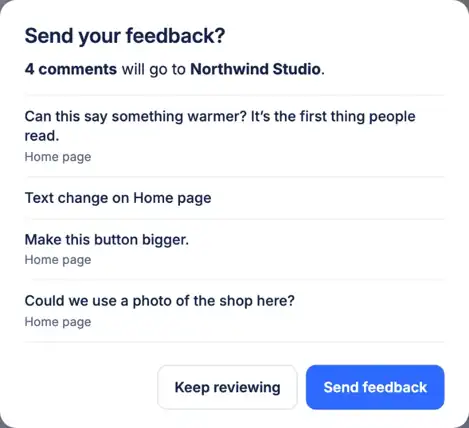
When you’re done, choose Comments on the review toolbar, then Finish review at the foot of the list. Once you have something to send, Finish review is also on the toolbar on a computer, and floats above the website on a phone. It opens a confirmation before anything is sent.
Check the list. It shows each comment that’s about to go to your team, including your drafts.
Choose Notify team to send the summary. If you have finished drafts to post, the button shows how many it will post. Choose Keep reviewing to go back.
Finish review shows what is about to go.
A draft with nothing in it stays out of the list. The sheet tells you when a draft isn’t ready to send. If a comment can’t be sent, it says which one, and Try again sends the rest. Nothing is lost.
Who gets told
Posting a comment sends no email by itself. Your team gets one summary when you finish. If you leave without finishing, the summary goes after 60 minutes with no new comment, and says you may not be done.
After you finish
Finishing doesn’t approve the project or publish anything. You can keep reviewing and add more at any time, or come back through a valid link to follow the conversation.
Leave a comment and pin
Point at the exact thing you want changed, describe it, and post it with a screenshot attached.
Open the website review and browse to the page you want.
Switch from Browse to Comment in the review toolbar. It’s at the top on desktop and at the bottom on a phone. On a computer, each part of the page is outlined as you hover.
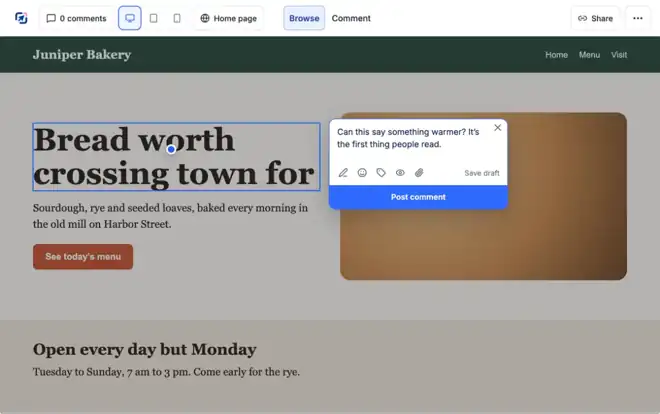
Click the thing you want changed. A numbered pin marks the spot and a card opens beside it.
Write what should change. In instant view you can post while the screenshot is being taken. Choose Open screenshot when the preview appears to see it or draw on it.
Choose Post comment. Feedback submitted appears for a moment, with View to open it, and you can carry on.
The card opens beside what you clicked. Its icons are explained below.
Go to another page
On a website Agentic Edit hosts, choose Pages in the review toolbar to see every page of the version you’re reviewing, with folders for addresses that go deeper, such as /resources/. Search by name or address, or type an address and press Enter. Pages you opened recently come first. The page opens inside this review.
On a website reviewed from its own address, Pages shows the page you’re on and Refresh. To go to another page, use the website’s own links, as you would when visiting it.
For a wording change, write the replacement in your note. For example: “Change Contact to Book a call.”
Not ready to post?
Choose Save draft, or the X on a phone. A draft is private to you until you post it, and you’ll find it under the comments button in the review toolbar. To get rid of one, open it and choose Delete draft.
Mention a teammate
On your team, type @ in a note or reply to mention someone on the project. They get an email with a link to that comment. Reviewers can’t see who is on the team, and can’t mention anyone.
Use the keyboard
In Comment mode
With the preview focused, the arrow keys move the selection, Shift + arrow moves it farther, and Enter captures it. Press Escape to go back to browsing.
In Browse mode
Keys you press go to the website, including Tab and Escape. To leave the website with the keyboard, press Escape twice, F6 or Ctrl + Shift + Tab, or choose Leave website above the preview.
Review on your phone
Everything you can do at a desk works on a phone: scroll, tap to comment, draw and post.
Open your review link on your phone. The website fills the screen.
Drag to scroll the website, as you normally would.
Tap Comment, then tap the thing you want changed.
Write your note in the sheet that opens, then tap Post comment. Use Draw to mark up the screenshot. The X keeps your note as a private draft.
Feedback submitted appears for a moment, and you can keep going.
On a phone the website gets the whole screen.
Find the other controls
The controls on the side
Button
What it does
Comment
Turns commenting on, and off again.
Comments and its count
Opens the comments. Search sits behind its magnifier.
Pages
On a website Agentic Edit hosts, every page, to search and open. On one reviewed from its own address, the page you’re on and Refresh.
The device button
Shows the size you’re previewing, such as Phone, and opens Preview device.
More
Refresh this page, Draw on the page, pins, Help and Workspace home. Your team also finds Share and Designs here.
The tab beside the controls folds them away, so you see the whole website, and brings them back. More / Move controls puts them on the other side.
Type into the website
To fill in a field on the site, such as a search box, tap the field while browsing. A typing box appears. Type, press return to send it to the website, and press return again if you want to submit it. If the box doesn’t appear, choose Keyboard on the side toolbar.
Read, reply to and resolve feedback
Work through a project’s comments, keep the conversation in one place, and close each one when it’s done.
Find what needs doing
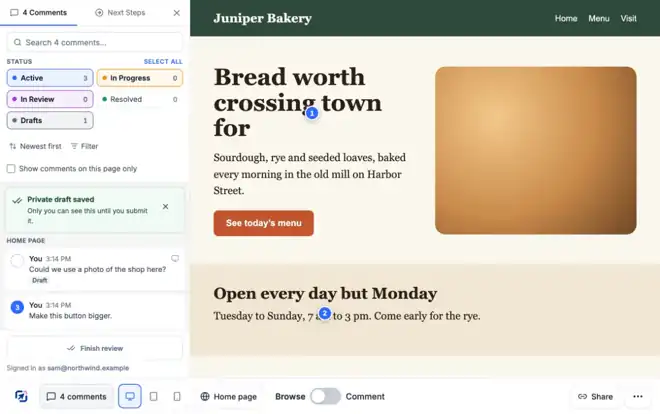
Open the review and choose the comments button in the review toolbar, which shows a count such as 4 comments. A project’s canvases have the same panel.
Filters and search never change a comment.
Search looks through notes, screenshot markup, names and page addresses, within this project only.
Open Filter to change the order, filter by commenter, or include resolved comments.
Show comments on this page only keeps the list to the page you’re looking at.
Review together
When someone else is on the same page or file, their colored pointer shows where they are looking. Each person scrolls independently. Posted comments appear for the people who can read them, while unfinished drafts stay private.
Work on a comment
Open a comment to see its original screenshot, markup and conversation.
To draw on a posted screenshot, open its thumbnail and choose Mark up screenshot. Add or edit a mark, then save. The author or project team can do this once the screenshot is ready.
Reply. You can attach files to a reply too, and reviewers can reply back.
Set Priority to mark how urgently the comment needs attention.
Team members can choose Resolve once they have checked the change.
After updating a website
Open the website’s comments panel and choose New round, or choose Start a new review round from the project menu.
Name the round and confirm. The updated website opens with a fresh comment list.
Use the round menu above the comments to revisit earlier feedback. Its screenshots and discussion stay with that round.
A website review link stays on the round you shared. After starting a new round, choose Share / Copy link to send a new link. Previous links still show their original comments and saved screenshots, and stop accepting changes. A link to a particular older comment opens its original round. For an uploaded image, PDF, video or email, use a new file version instead.
Delete a comment
The person who wrote a comment, or your team, can choose Delete comment. That removes its replies and screenshot too.
The remaining comments are renumbered without gaps. A pin and its comment always share the same number, and links to the remaining comments keep working.
Export comments
Open Next Steps in the comments panel to export a CSV for spreadsheets or a page to print or save as a PDF. Website exports use the selected review round. Exports include team-only comments, marked as such, so take care where you send them.
Request a wording change
Tell the team exactly what the page should say in an ordinary comment.
Choose Comment and click the words you want changed.
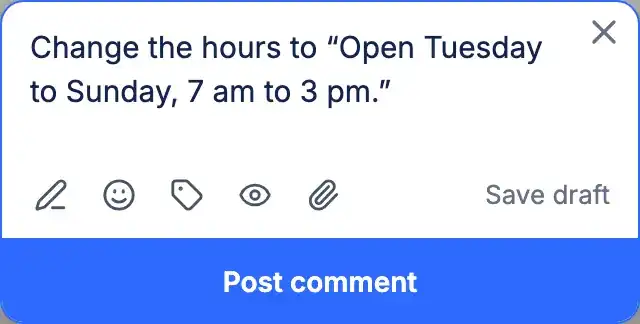
Type your request in the note. For example: “Change Open daily to Open Tuesday to Sunday, 7 am to 3 pm.”
Choose Post comment. The team gets your wording and the location you pinned.