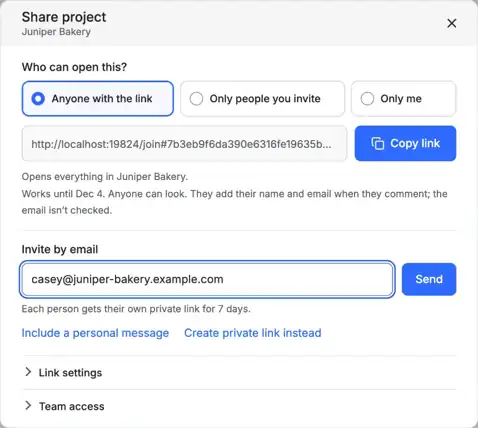
Give a reviewer their own private link, or add a colleague to your team. The two are different.
Reviewer or teammate?
Item
Invite a reviewer
Add a teammate
Where
Share on a project
Settings, under Team
Reaches
That one project
Projects their role allows
Needs an account
No
Yes, sign-in by email
Counts on your plan
Never
Yes
Invite a reviewer
In Share, type one or more addresses under Invite by email, separated by commas.
Optionally choose Include a personal message, up to 500 characters.
Choose Send.
Each person gets their own private link, which lasts 7 days.
Check on an invitation
Everyone you invited is listed under the box, with their email status and end date:
Email on its way or Email sent: the email went to our mail provider. That doesn’t prove it reached their inbox.
Email failed or Email may not have arrived: choose Send again, or send them a private link yourself.
Removed or Expired: their link no longer works. Invite them again.
Send a link yourself
Type their address, then choose Create private link instead. Nothing is emailed. If your installation can’t send email, the button is Create private link, and this is the normal way to invite someone.
Remove someone
Choose the remove button beside their address. Their link stops working.
Passwords and expiry
Add a password to a review, and know exactly when each kind of link stops working.
Add a password
Open the project, choose Share, then open Link settings.
Under Password, choose Add a password.
Enter at least 6 characters and choose Save.
Tell your reviewers the password separately from the link.
Everyone joining through a link or a personal invitation has to enter it.
Your team is never asked for it.
Setting or changing it signs out reviewers who are already in. They come back with the new one.
To change or remove it, choose Change password in Link settings.
How long access lasts
When access ends
What
How long
A personal invitation
7 days from sending
A review link
30 days, or 14 or 7 if you make one with those settings
A client’s stay after joining by link
Up to 30 days on one device, while the link lasts
Stop comments without stopping access
Pause commenting in Link settings stops reviewers adding comments and replies while your team carries on. Existing feedback stays readable. For a set date, use a deadline.
Review links
Make one link that many people can join through, and control how long it lasts and how people get in.
Choose what opens
Share a project to open its list of canvases. To start someone on a particular website or file, choose Share on that canvas. The link and email invitation use the same destination. A single-canvas link stays on its website round or published file version; a project link opens the project collection.
When you paste a newly copied link into a chat, its preview identifies the review and uses its existing thumbnail when available. Password-protected and email-verified reviews use general artwork. A file preview stays with the shared version. An earlier website round uses general artwork because the live page may have changed. Preview services may retain an older cached card. Opening the review gives the recipient access according to your sharing settings.
Previously issued project links keep their project access. To narrow an old link, turn it off in project sharing and send a new link from the canvas.
Get a link
Open the project or canvas you want to share and choose Share.
Under Who can open this?, choose Anyone with the link. The link appears right away.
Choose Copy link and send it through a channel you trust.
A link lasts 30 days. It opens straight away, with nothing to fill in. People add their first and last name and email when they post their first comment, and can come back on the same device for up to 30 days, while the link lasts. If they already have an account, they can sign in instead.
Make a link with different rules
Open Link settings in Share. Under Make a new link with different settings, you can choose:
Options for a review link
Option
Choices
Link expires
After 30 days, 14 days or 7 days
Ask people to confirm their email with a code
On or off
Choose Make a new link. Your earlier link keeps working until you turn it off, and Share shows the one to copy.
How much a link proves
Without a code. The email isn’t checked. Your team sees it marked as not verified.
With a code. The person has to control that address. Anyone with the link can still use any address they control, so this is not an approved list.
Turn a link off
Open Link settings and turn it off under Links that work now. Everyone who joined through it loses access at once.
When a link has expired
It stops working, and Share says so. Choose Make a new link to get another.
The project’s address
Under Team access, project links use a readable address made from the project name, such as /review/all-hat. Owners and admins can change it. The old one keeps opening the project for 30 days, and older links containing the project ID keep working.
What reviewers need
A link and a browser. No account, nothing to install, and it works on a phone.
A link from the team that’s asking for feedback.
A current web browser, on a computer, tablet or phone.
Nothing else. No account and nothing to install, on their device or on the website.
What they’re asked for
It depends on how the project was shared:
What each kind of link asks for
Sent
They enter
Personal invitation
Nothing, unless there is a password
Review link
Nothing to look around. First and last name, and email, to post a comment
Review link with verification
First and last name, email, and a code emailed to them
Any link with a password
The password you gave them too
Their name appears beside their comments. Their email is visible to the team that sent the link.
Tips to send your client
Open the link in the browser you’ll use to finish. A code only works in the browser that asked for it.
The review browser is separate from your own browser, so you won’t be signed in to anything on the website.
You can come back on the same device for up to 30 days, while the link lasts. Your drafts save automatically.
What your client sees
What a reviewer can and can’t see in a review, so you know what to expect before sending the link.
What they see
Your workspace’s name, and buttons in your brand color.
The website or file you shared. A project invitation includes its own website and file canvases.
Submitted comments on the website or files they can access, including feedback from other reviewers, with screenshots and replies.
Their own private drafts. Nobody else’s.
A coding agent’s implementation reports in comments they can read.
Any feedback deadline, and a notice when commenting is paused or closed.
What they don’t see
Comments marked Only my team can see this.
Who is on your team. They can’t @mention anyone.
Your project description, Share, Project settings and AI connections.
An invitation, a code if the link asks for one, and any reminders you schedule. They don’t get the summary emails your team gets.
Who can open what
Your team, invited people and link visitors each get different access. One choice in Share decides which of them can get in.
Who can open a project
Who
What they can open
Owners and admins
Every project in the workspace.
Members
Only projects shared with them.
Someone you invited
The project, website or file canvas you invited them to, through their personal link.
Someone with a review link
The project or single canvas you shared, until the link expires or is turned off.
A connected agent
Only the projects you approved for it.
Set who can get in
Open the project, choose Share, and answer Who can open this?
The title of the Share dialog tells you whether you’re sharing a project, a website or a file canvas.
Anyone with the link. Your review link and Copy link appear right away. Anyone who has it can look around, and adds their name and email when they leave feedback, so share it only with people you trust.
Only people you invite. Your team and the people you invite can open it. Every review link stops working straight away, and anyone who joined through one loses access.
Only me. Only you can open the project. Your team, reviewers and connected agents can’t. Review links and invitations are paused, and work again when you change this. Only the person who created the project can choose it.
Give one teammate access to one project
Owners and admins can open Team access in Share, or Project settings, and tick who on the team can open it. Changes save automatically. See Roles.
Share one canvas or the project
Choose Share from a canvas to give a new guest access to that file or website alone. Choose Share from the project to include its canvas list, its own website and its files. A website filed here from a different project needs its own invitation. Team members retain the access they already have.